

Steps on How to Remove Sticker from Photo
- Use Cases for Sticker Remover
- Best 3 Tools to Remove Sticker from Photo
- Comparison Table of Sticker Remover Tools
- Tips for Effective Removal of Stickers
Use Cases for Sticker Remover
There are several situations where learning how to remove sticker from photo can make your images look cleaner and more professional:
- Cleaning up photos when stickers make the image look cluttered or unprofessional.
- Restoring original details that were covered by decorative stickers or text elements.
- Preparing images for product listings, marketing materials, or social media posts where a clean look is required.
- Removing stickers that were used to hide objects or faces once the user decides the original version is better.
- Improving personal photos where stickers no longer match the mood or purpose of the image.
Best 3 Tools to Remove Sticker from Photo
Not all devices have a built-in object remover or eraser that users can use. Third-party applications will eventually be needed. Below are the three tools that you can use to try how to remove stickers from pictures:
PicWish
PicWish is a software that mainly offers photo editing features that work with the support of artificial intelligence (AI). Users can use PicWish to remove and replace the background from their image, unblur photos, generate AI art, and restore old pictures. More than that, PicWish is one of the tools that you should know so you can try how to remove sticker from photo.
Its AI Sticker Remover feature allows users to remove stickers from images using a prompt-based automatic process. When you access this tool, an already-made prompt appears in the prompt box, which you can use as-is, edit, or replace with your own instructions. The AI processes the image to remove the sticker without manual shading or editing, and naturally fills in the background. This approach makes sticker removal quick and easy, providing best results with minimal effort. Additionally, you can try four different AI models —Nano Banana, Seedream 4.0, GPT Image-1, and Flux Kontext —allowing you to see which generates the most accurate and visually appealing results for your images.
Here are the following steps on how to remove a sticker from a picture using PicWish:
- First, go to PicWish AI sticker remover.
- Click the upload image icon. Then you can use the ready-made prompt on the text box, edit it, or enter your own prompt.

- Select the aspect ratio you want.
![ai sticker remover aspect ratio]()

- After that, click the send icon and wait for the process to finish.
![picwish sticker removal process]()

- Once finished, check the generated image and if you’re satisfied, click Download Image.
![ai sticker removed download result]()

Fotor
Fotor is another AI photo editing software that you can consider once you try how to remove sticker from photo. Users can access this tool on web browsers and its app version can also be downloaded on Android, iOS, and Mac. Its Magic Eraser feature can help you remove the unwanted stickers from your picture. However, unlike the first tool, it only has Brush to manually select and mark the sticker that you want to remove, and the Quick Select option for easy object selection. In terms of download, it requires payment to save the final result of your image. But on the positive note, if you are looking for a wide variety of image generators, AI effects and filters, collages, video generator, and AI slides, Fotor can cater to your needs.
Here are the following steps on how to remove a sticker from a picture using Fotor:
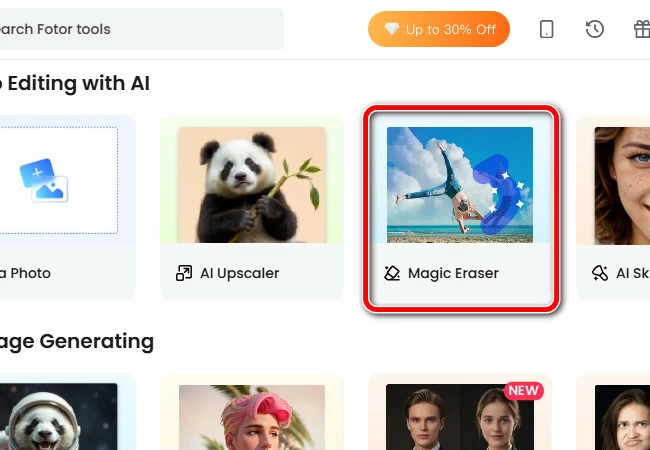
- Go to fotor.com and select Magic Eraser.
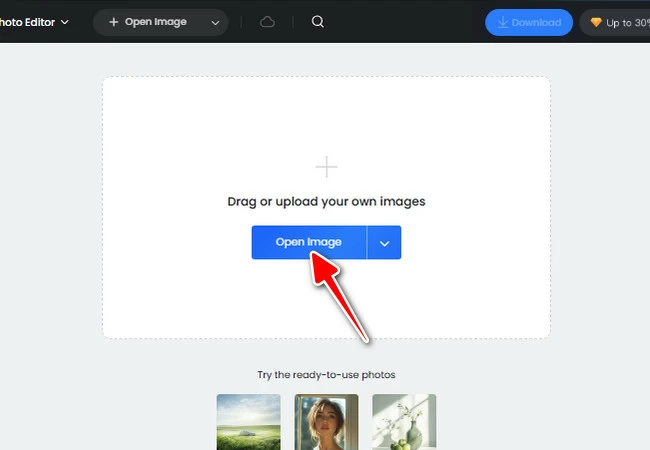
- Next, upload your image by clicking Open Image, or you can drag and drop it to the upload panel.
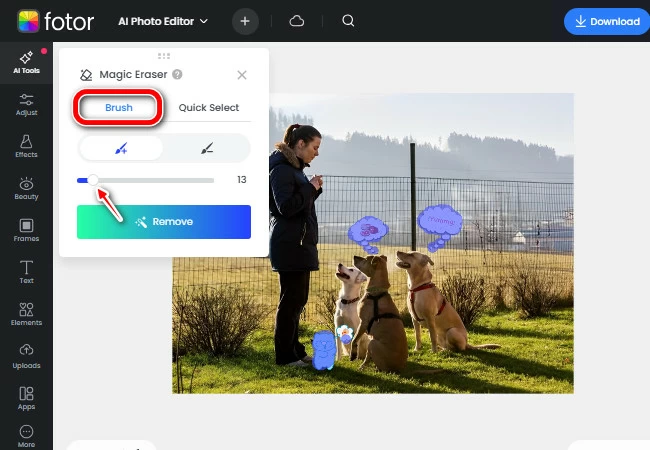
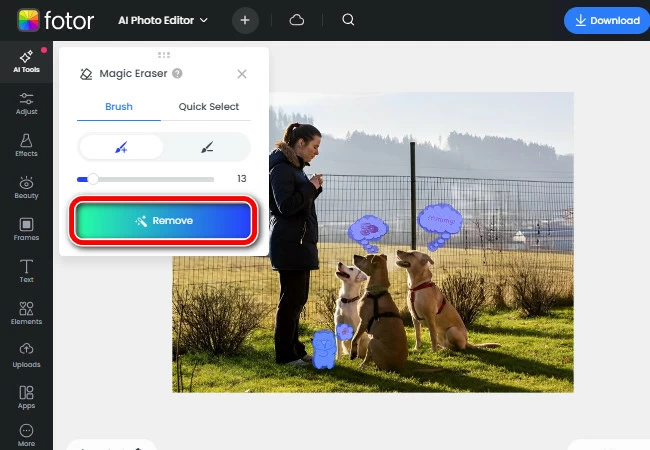
- Once your image is uploaded, you can pick between Brush or Quick Select.
- If you choose the Brush, you can manually remove the sticker from your image. Adjust its size first, then glide it on the sticker that you want to be removed.
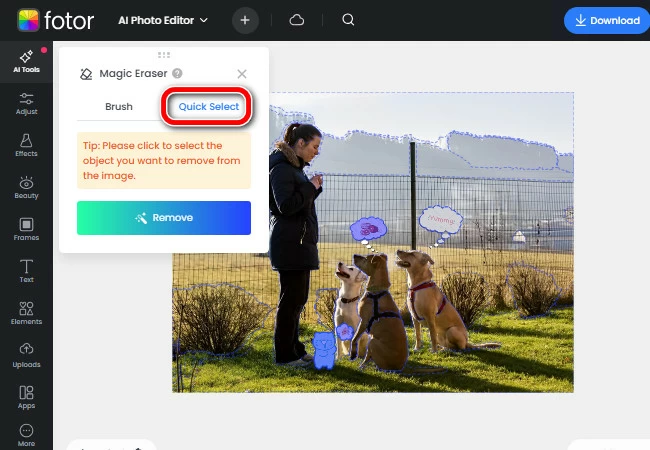
- For the Quick Select, blue borders will appear on certain elements of the image. It allows you to precisely select the sticker that you want to be removed from your image.
- After that, click the Remove button.
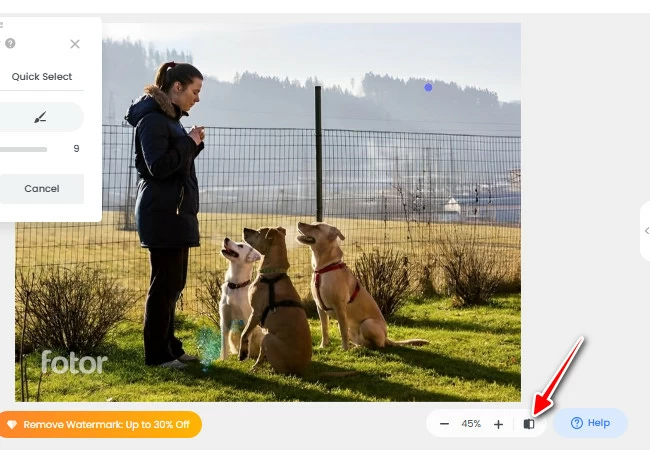
- To compare the before and after results, click or long-press the Compare icon on the bottom right part of your screen.
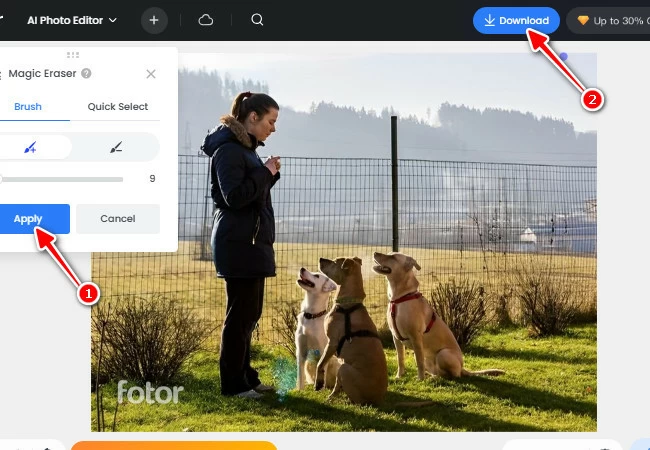
- Lastly, click the Apply button, then click the Download button to save.
Picsart
The last, but definitely not the least tool that you can consider in trying how to remove sticker from photo, here’s Picsart. This tool offers a wide variety of features, including templates for social media posts or stories, documents, and marketing designs. It also offers AI video generation, and of course, photo editing features that include its Remove objects tool. Although this give users the solution for removing the stickers on their photos, Picsart only offers Brush, unlike the first two tools that have been mentioned. Along with this, it has a watermark embedded on the final result of the image upon downloading and it requires payment as well. Favorably, if you find Picsart worth exploring, it offers a 7-day free trial to its new users.
Here are the following steps on how to remove a sticker from a picture using Picsart:
- Access the Picsart website, then find the Remove objects feature under Time-saving shortcuts.
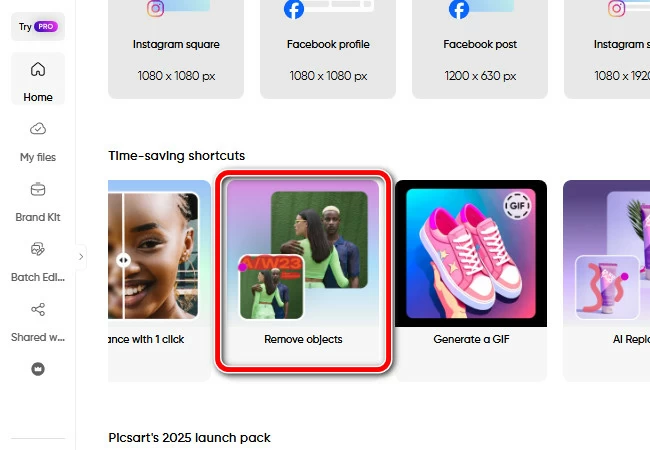
- Upon clicking the feature, choose and upload your image.
- Next, adjust the size of the brush and swipe it on the sticker that you want to remove from your image.
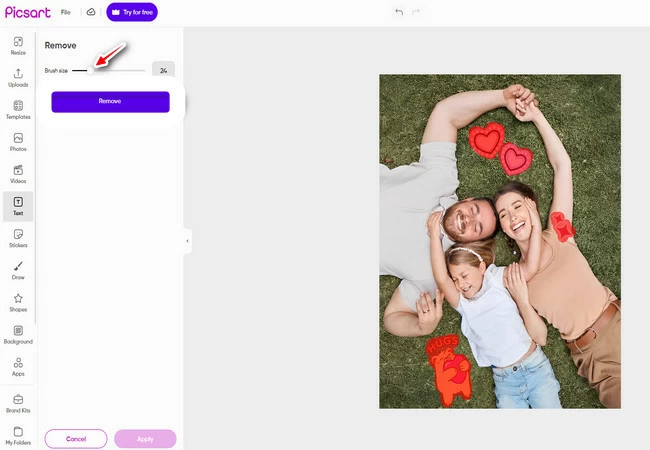
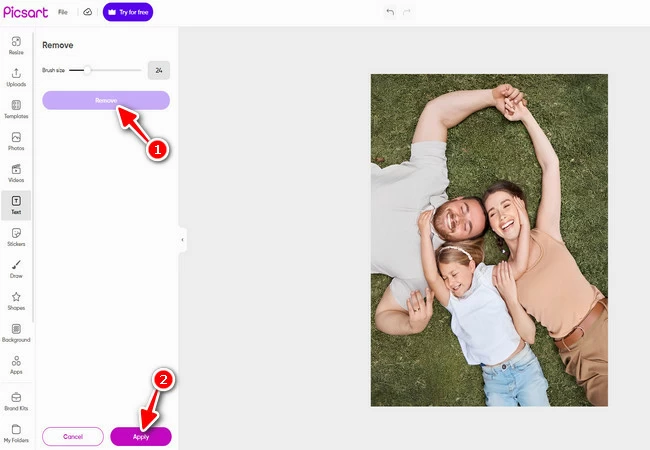
- Click the Remove button and wait for the process to finish. After that, click Apply.
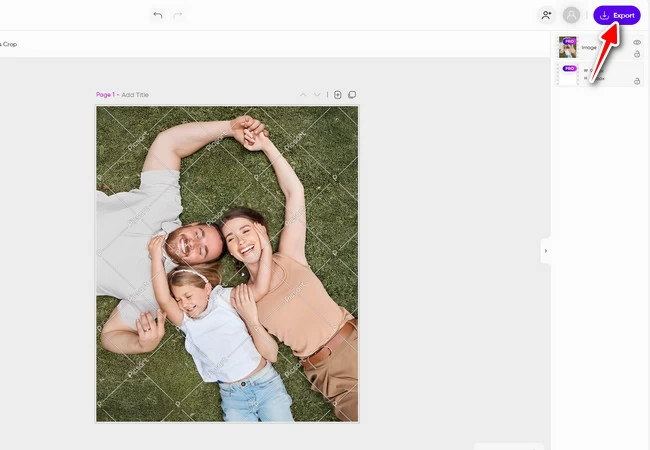
- Lastly, click Export.
Comparison Table of Sticker Remover Tools
To help you decide which tool best suits your needs, the table below compares PicWish, Fotor, and Picsart across key factors such as ease of use, speed, output quality, limitations, and additional features.
| Feature / Tool | PicWish AI Sticker Remover | Fotor | Picsart |
| Sticker Removal Method | Prompt-based AI; also offers manual method with Remove Object tool | Manual Brush / Quick Select | Manual Brush |
| Ease of Use | Very easy; AI handles most work | Moderate; requires some manual input | Moderate; fully manual |
| Speed | Fast; AI handles most processing | Medium; manual selection takes time | Medium; manual brushing can be slow |
| Output Quality | High; natural and polished results | Good; may need adjustments | Good; watermark present unless paid |
| Limitations | Free plan offers 1 free usage and download per day; pro plan offers 2 free uses and downloads per day | Paid download | Paid; watermark on free version; |
| Additional Features | AI Designer (supported by 4 AI models: Nano Banana, Seedream 4.0, GPT Image-1, Flux Kontext), Enhance Photo, Restore Old Photo, AI Background, Product Retouch | AI effects, filters, collages, video | Social media templates, AI video, filters |
Among the three tools, PicWish stands out as the most efficient and user-friendly solution for learning how to remove sticker from photo. Its prompt-based workflow allows for fast and accurate sticker removal without requiring extensive manual effort, producing polished, professional-quality images. While Fotor and Picsart provide useful alternatives, they rely heavily on manual selection and often come with limitations such as watermarks or paid features. For anyone seeking a reliable, high-quality, and effortless way to remove stickers, PicWish offers the most comprehensive and effective experience.
Tips for Effective Removal of Stickers
Below are some tips that can help you once you try how to remove sticker from photo:
- Start with a clear idea of how to remove sticker from photo so you can choose the right tool or prompt before editing.
- Use zoom to mark or select edges more accurately, especially when working with small or detailed stickers.
- Remove the sticker in smaller parts instead of trying to erase everything in one sweep to avoid messy patches.
- Try different brush sizes, prompts, or tool modes to get a cleaner and more natural-looking result.
- Avoid heavy editing that can create uneven colors or textures in the background.
Conclusion
That wraps it up! Now that you already know how to remove sticker from photo and what tools you can use, you can now explore them to know which tool is most suitable for your editing needs.


Leave a Comment