

If you’ve ever downloaded a photo only to find it covered by emojis, text stickers, or decorative overlays, you know how frustrating it can be. Luckily, modern AI tools can automatically detect unwanted elements and reconstruct the background, making your images clean and professional again—without needing advanced photo editing skills.
This guide explains how to remove stickers from pictures online for free, with step‑by‑step instructions and the top tools available today.
Why Use AI Sticker Removers?
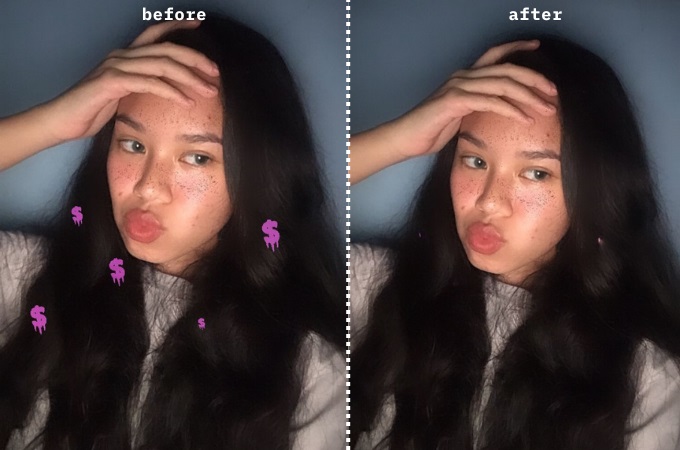
AI-powered editors can automatically detect sticker layers and fill the removed areas with realistic background pixels, ensuring a natural look. Many of these tools operate entirely in your browser, requiring no installation.
Key benefits include:
- Instant results without manual editing.
- Preservation of the original photo quality.
- Works for all types of stickers: emojis, logos, text overlays, or decorative graphics.
- Some tools support batch processing for multiple images.
How to Remove Stickers from Pictures Online: Best Free Tools
1. PicWish AI Sticker Remover (Best Overall & Beginner-Friendly)

PicWish is a beginner-friendly AI sticker remover that allows you to remove emojis, text, or decorative stickers while maintaining the integrity of the background. Its AI intelligently reconstructs hidden areas, making the photo look natural and polished. PicWish also offers batch processing for multiple images, which is ideal for social media managers or e-commerce sellers.
【NEED PICTUURE BELOW: show each step.】
How to remove stickers with PicWish
1. Click Upload Image and select your photo.

2. Review the AI prompt (you can customize it to target specific stickers).

3. Download your cleaned image or continue with additional edits.

✅ Best for: Fast results with minimal effort.
✅ Highlights: Preserves background textures and details, perfect for both casual users and professionals.
2. LightPDF AI Sticker Remover (Fast Automatic Detection)
LightPDF AI Sticker Remover automatically detects stickers and blends the background naturally after removal. It supports multiple formats including JPG, PNG, and WebP. This tool is excellent if you want an automatic, one-click solution without worrying about technical details.

How to remove stickers with LightPDF
- Upload your photo.
- The AI will detect stickers automatically.
- Download the cleaned image in seconds.
✅ Best for: Users who need fast, hands-off processing.
✅ Highlights: Maintains portrait lighting and image sharpness, suitable for social media photos.
3. AirMore AI Sticker Remover (Completely Online)
AirMore AI Sticker RemoverAirMore’s sticker remover works fully online and removes emojis, logos, and text stickers with natural-looking backgrounds. Its simple interface makes it ideal for users who want a quick result without learning any editing tools. It also supports images up to 10MB, making it versatile for different use cases.

How to remove stickers with AirMore
- Upload your image (supports JPG or PNG).
- Wait for AI detection of unwanted elements.
- Preview and download the polished image.
✔ Free usage: Up to 2 images per day without registration.
✔ Highlights: Works well for casual photography and social media images.
4. AI Ease Sticker Remover (Advanced Layer Detection)
AI Ease Sticker Remover uses advanced layer detection to separate stickers from background and subjects, ensuring key details remain intact. This tool is particularly useful for complex images, like landscapes or product photos, where the sticker overlaps important areas.

How to remove stickers with AI Ease
- Upload your image (JPEG, PNG, WebP, BMP).
- Let the AI detect stickers and reconstruct the background.
- Download the restored image.
✔ Best for: Users needing precise, professional-quality results.
✔ Highlights: Maintains natural textures and color gradients, ideal for e-commerce or marketing visuals.
5. Perfect Corp AI Sticker Remover (Great for Social Media Photos)
Corp AI Sticker Remover focuses on social media-ready results. Its AI removes stickers seamlessly while blending the background so that textures and lighting remain consistent. The tool is excellent for portraits, selfies, and lifestyle photos where small imperfections need to be erased.

How to remove stickers with Perfect Corp
- Upload your photo.
- Mark the sticker for removal.
- Let the AI process and download the cleaned image.
✔ Best for: Influencers and casual photographers.
✔ Highlights: Retains photo aesthetics and smooths background areas effectively.
6. Pixelcut Cleanup Tool (Prompt-Based Editing)
Pixelcut Cleanup Tool allows users to describe the sticker or object they want removed with a text prompt. Its AI then removes the sticker and reconstructs the background seamlessly. This makes it ideal for designers or e-commerce sellers needing precise edits.

How to remove stickers with Pixelcut
- Upload your image.
- Enter a prompt describing what to remove (e.g., “remove text sticker”).
- Generate and download the cleaned photo.
✔ Best for: Professionals and designers requiring detailed edits.
✔ Highlights: Works on complex backgrounds and supports prompt-based customization.
7. Kaze.ai Sticker Remover (Professional-Grade Results)
Kaze.ai Sticker Remover delivers high-precision sticker removal, suitable for both personal and professional use. It supports multiple file formats and allows batch processing, making it excellent for high-volume projects or commercial photography.

How to remove stickers with Kaze AI
- Upload or paste your image.
- Let the AI perform automatic cleanup.
- Download your distraction-free result.
✔ Best for: Professionals or anyone needing high-accuracy results.
✔ Highlights: Preserves details and textures, suitable for portfolios or e-commerce images.
Quick Comparison
| Tool | Best For | Key Advantage |
|---|---|---|
| PicWish | Beginners | Smart prompt-based removal, batch processing |
| LightPDF | Speed | Automatic detection, hands-off editing |
| AirMore | Free online use | Easy and fast, supports large images |
| AI Ease | Detail protection | Layer-based processing, precise results |
| Perfect Corp | Social media | Seamless blending, maintains aesthetics |
| Pixelcut | Designers | Prompt-based edits, complex backgrounds |
| Kaze.ai | Professionals | High precision, batch processing |
Tips for Better Sticker Removal
- Use high-resolution images for more accurate AI reconstruction.
- Avoid heavily compressed files to reduce artifacts.
- If stickers cover important details, choose tools with advanced AI reconstruction features.
Final Thoughts
Removing stickers from photos is easier than ever. AI tools like PicWish, LightPDF, and AirMore can automatically detect and remove unwanted stickers while preserving image quality. For more advanced edits, tools like Pixelcut, AI Ease, and Kaze.ai offer professional-grade reconstruction.
👉 Top choice for beginners: PicWish
👉 Top choice for automation: LightPDF or AirMore
👉 Top choice for professional editing: Pixelcut or AI Ease
Restore your images instantly and effortlessly with these AI-powered tools.




Leave a Comment