
If you’ve ever spent hours regenerating an AI image just to fix one weirdly shaped coffee cup, you know the struggle. Traditional AI image generation has always been a game of roulette—you get a stunning picture, but if one tiny detail is off, changing it often meant losing the entire composition. That frustration ends today. With the new capabilities in ChatGPT Images 2.6, you no longer have to rely on luck to get perfect visuals; you now have the exact tools to control, animate, and refine them.
What’s New in ChatGPT Images 2.6: Unmissable Key Features
OpenAI didn’t just make things faster; they gave creators actual control. Here are the top four upgrades you need to care about:
50% Faster Iteration & Professional Visuals
The overall image generation speed has been boosted by a massive 50%. For developers and pro users, the API now offers two distinct models (Flare and Sunburst) tailored to balance lightning-fast layouts with high-fidelity, production-ready details.
Seamless Text-to-GIF Animation
You can now bring static characters, rough sketches, or brand mascots to life. With a single prompt, ChatGPT Images 2.6 generates seamless, looping GIFs that are perfect for social media memes, marketing campaigns, or storyboard testing.
Markup-Guided Precision Editing
No more guessing games. You can now visually circle or “paint” over a specific area of an image and tell the AI exactly what to replace it with. This allows you to modify specific elements while keeping the original character, product, and brand details 100% consistent. Learn more about ChatGPT Photo Editing.
Advanced Complexity Controls & SVG Exports
Need an image for web design or printing? The new update supports SVG vector exports, meaning your designs can be scaled infinitely without losing quality. Additionally, a new “Complexity parameter” lets you control how deeply the AI plans a scene, giving you the flexibility to choose between rapid micro-edits and highly complex compositions.
Flare vs. Sunburst: Understanding the Dual Models of ChatGPT Images 2.6
If you are using the API for professional workflows, GPT Images 2.6 splits into two distinct models. Choosing the right one is crucial for your workflow:
| Feature | GPT-Image-2.6 Flare ⚡ | GPT-Image-2.6 Sunburst ☀️ |
| Best For | Speed, rapid prototyping, and text layouts. | High-fidelity details and complex scenes. |
| Generation Speed | Extremely fast (generates in as little as 6 seconds). | Standard generation time. |
| Ideal Quality Setting | Low Quality | Medium or High Quality |
| Top Use Cases | Social media posts, poster layouts, fast creative iterations. | Photorealistic portraits, product campaigns, consistent multi-round edits. |
Tip for everyday users: If you are using the standard ChatGPT web or mobile interface, the system intelligently balances these capabilities behind the scenes based on your prompt.
How to Use the Best Features in GPT Images 2.6
1. How to Use the Precision Editor (Inpainting)
Already generated a wonderful image in the whole but are not satisfied with a certain part? It’s easy to fix it with the new ChatGPT Images 2.6. For instance, you’ve got a perfect room image, but you hate the rug. Here is how to fix it without destroying the whole:
- Select the Tool: Click on your generated image to expand it, then tap the Markup icon at the bottom left.
- Circle or Highlight the Target Area: Use your mouse or finger to circle the unwanted part.
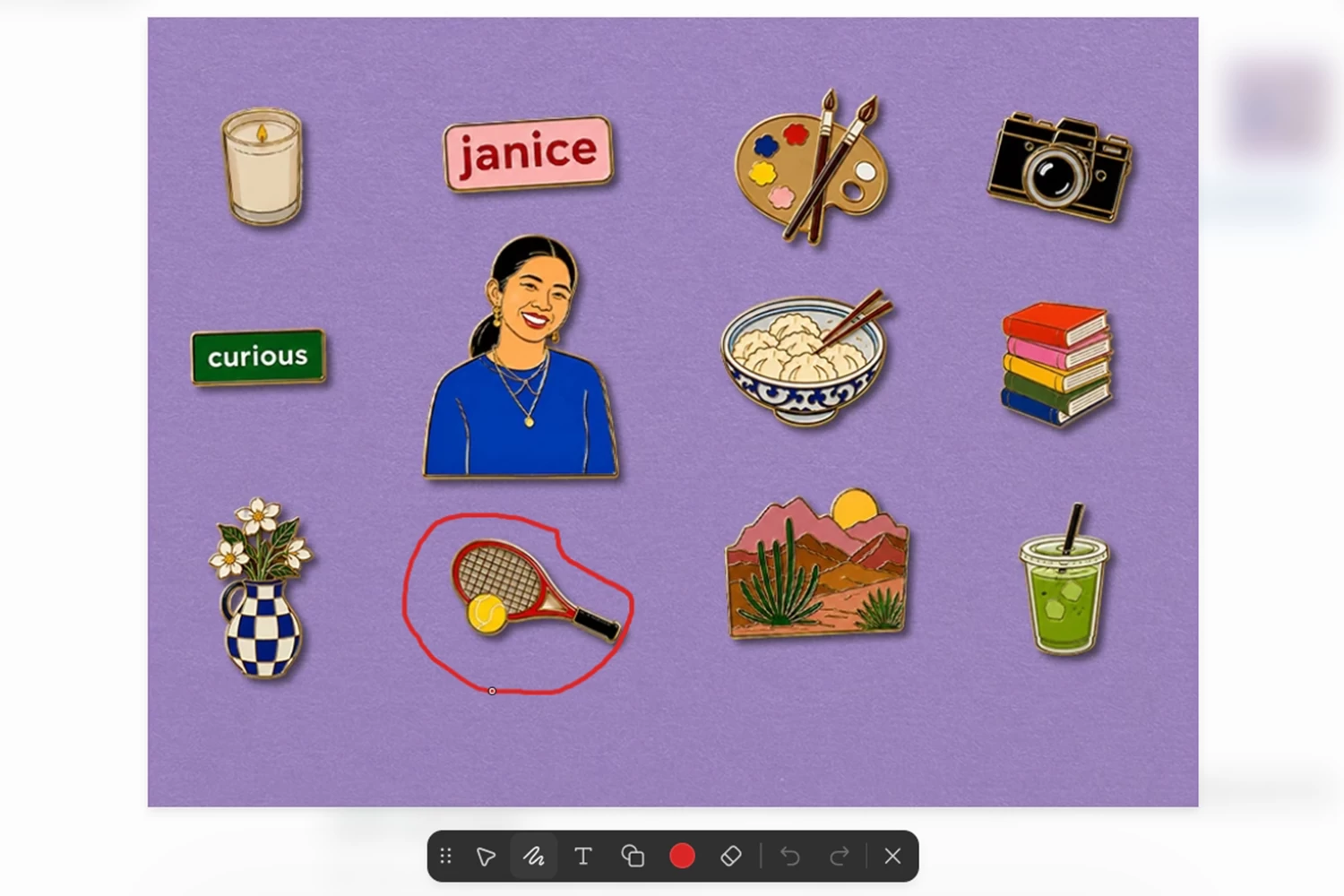
- Prompt the Change: In the text box, don’t describe the whole image again. Just type what you want in that specific spot: “Replace with a xxxx” or “Remove this object.”
- Hit Apply: Watch it blend perfectly into your original scene in seconds.
2. How to Create Animated GIFs
GIFs are the native language of the internet, and making them is now incredibly straightforward. You can even upload a rough pencil sketch and ask the AI to animate it.

When prompting for a GIF, be highly specific about the motion and frames. For example: “Create/generate a seamless looping GIF of a cute dog. Sequence: the dog notices a bone, its eyes widen, it jumps up happily. Polished 3D style.” Or if you have your own picture, just upload it and simply input the prompts. The AI will handle the sprite sheet formatting and smooth transitions automatically.
3. How to Try GPT Images 2.6 for Free (Via PicWish)
If you don’t have a ChatGPT Plus subscription or simply prefer a more streamlined interface, you don’t have to miss out on this update. PicWish has quickly integrated the new model, allowing you to test drive its capabilities for free.

Head over to the PicWish GPT Image 2.6 Generator and try these two workflows:
- Generate from Scratch (Text-to-Image): Simply type your creative prompt into the text box, and let the 2.6 model generate a brand-new, high-fidelity visual in seconds.
- Modify Existing Visuals (Image-to-Image): Click to upload an existing photo you want to edit or turn into a GIF. Enter your specific text instructions, and the latest model will intelligently analyze and modify your image based on your prompt, delivering those precise edits without ruining the original composition.
3 Pro Tips You Need to Know (The Secret Sauce)
Want to use ChatGPT Images 2.6 like a pro? Keep these three golden rules in mind:
🚨 Tip 1: The “Human Likeness” Hack for GIFs
If you try to animate a photo of a real person, you will quickly notice a problem: the AI regenerates the face in every frame, causing the person to look distorted or like a completely different human.
The Workaround: Tell the AI to freeze the human! If you upload a photo of yourself standing next to a Halloween prop, use a prompt like: “Turn this into a GIF, but ONLY animate the prop. Keep the human face and body completely static.” This preserves your exact likeness while adding cool motion to the background.
🧠 Tip 2: Master the Complexity Parameter
When editing an image via API or advanced settings, you can adjust the “Complexity” parameter.
- Doing a simple color swap or minor text fix? Set it to Low. It will process incredibly fast.
- Asking the AI to add a detailed dragon sitting on the couch while maintaining accurate room lighting and reflections? Crank it to High.
🎯 Tip 3: Edit One Thing at a Time
Patience pays off. If you want to change the sky, remove a tree, and add a car, do not highlight all three areas at once and write a massive prompt. Highlight the sky, change it, and save. Then highlight the tree, remove it, and save. Step-by-step iterations yield significantly better and more realistic results than trying to do everything at once.
Final Thoughts
With ChatGPT Images 2.6, AI image generation finally feels less like a slot machine and more like an actual design tool. Whether you are using the lightning-fast Flare model to mock up posters or generating custom GIFs for your emails, the level of creative control is unprecedented. Jump in, start highlighting, and bring your ideas to life.



Leave a Comment