

If you have ever downloaded a picture from Google Gemini, Imagen, or Nano Banana and uploaded it straight to Instagram or TikTok, you have probably seen that annoying “Made with AI” label pop up within seconds. Even if you crop out the little sparkle logo in the bottom corner or take a quick screenshot, automated scanners still catch it. That is because Google hides an invisible tracker directly inside the image data itself. This article walks you through how to remove SynthID from images with 3 practical tools.
What Is SynthID?
Google DeepMind built SynthID as an invisible digital watermark for AI-generated images, audio, video, and text. When you generate a visual in Gemini, Google tags your file on two completely different levels. First, it attaches C2PA Content Credentials into the file header. This metadata acts like a digital luggage tag. It tells any social platform that Google AI generated your upload. Second, Google weaves the actual SynthID signal directly into the spatial frequency domain and pixel color channels.
Google mathematically spreads that second layer across the entire picture instead of placing it on top like a sticker. Because of this, normal editing tricks fail. You can compress the file into a low-res JPEG, slap on a heavy color filter, or chop off half the frame. Even then, Google’s detection algorithm will still piece the frequency grid back together. To truly remove SynthID from an image, you must strip the C2PA header first. Next, you need to introduce tiny frequency adjustments. These tweaks break the pixel pattern while keeping the picture looking identical to the human eye.
Remove SynthID from Image for Free with RemoveSynthID.io

RemoveSynthID.io is one of the easiest tools to remove SynthID from images. It offers a one-stop solution for both file container tags and deep pixel watermarks. You never have to upload private client work or personal designs to a sketchy cloud server. Instead, this tool runs entirely inside your local browser session. The scanner targets and neutralizes the specific frequency-domain carrier patterns from Gemini and Veo. It also rips out the C2PA and EXIF records in a single pass. It offers a free trial. If you want a reliable way to remove SynthID watermark from image files without losing resolution, follow these steps.
Step 1: Drop the File into the Scanner
Open RemoveSynthID.io in any browser. Drag in your unedited PNG, JPG, or WebP file. Stick with the original download rather than a screenshot. This helps the scanner read the frequency grid cleanly.
Step 2: Strip the Hidden Signal
Click the Remove SynthID button to start the cleanup. Within seconds, the tool wipes the SynthID. It also rebuilds the watermarked pixel areas until the detection score hits zero.
Step 3: Download the Clean Image
Hit download to save your untagged file. A basic account gives you one full SynthID scrub for free. Best of all, the exported image keeps its exact resolution and colors.
Remove SynthID Watermark from Image with GeminiWatermark.io
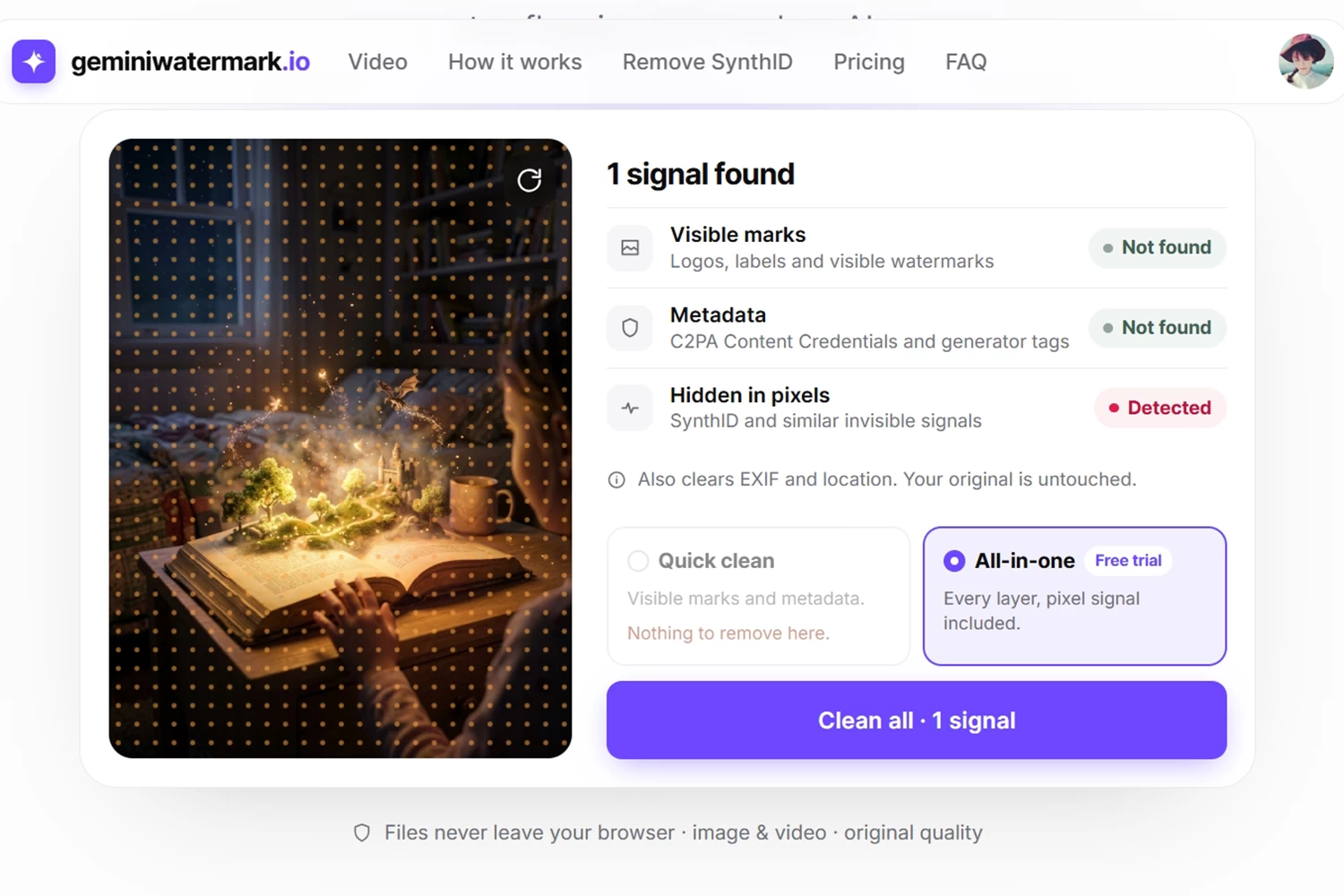
Still wondering how to remove SynthID from AI-generated images? GeminiWatermark.io gets the job done when you only need to clean static pictures. You do not have to mess with account sign-ups or paywalls. The tool runs right in your browser using WebAssembly. It makes tiny, invisible adjustments to the pixels and shifts color values by less than 0.3%.
That micro-adjustment is way too small for the human eye to spot. You will not see any weird color banding, blurriness, or lost PNG transparency. Still, this tiny shift easily breaks the rigid grid that SynthID scanners look for. That makes it a great everyday option to remove SynthID from an image for free, especially for batch files.
Step 1: Upload Your Image for Detection
Head to GeminiWatermark.io and drag your JPG, PNG, or WebP files into the upload box. You can drop in a single picture or load a whole batch at once. Then it will auto-detect the SynthID.
Step 2: Clean the Hidden SynthID
Once the SynthID is detected, it will automatically choose the All-in-one processing mode. Just hit the Clean All button to remove it. This step breaks up the hidden watermark structure.
Step 3: Save the Processed Files
Download the finished image. If you uploaded more than one image, grab the whole batch as a zip file. All the math happens inside your browser memory. Therefore, your original files never leave your computer.
Remove Watermark from Photos with PicWish

Sometimes the invisible code is only half the problem. You also have to deal with that obvious Gemini sparkle logo in the bottom corner. PicWish tackles the visual side of the cleanup and removes basic file tags along the way.
This tool works strictly as an AI photo editor rather than a deep frequency scrubber. It cannot erase the invisible pixel grid or remove SynthID from photos itself. However, PicWish offers a perfect workaround for removing watermarks from images. Its magic brush cleanly erases the visible AI stamp without leaving a blurry smudge. Exporting the edited photo then generates a fresh file container.
Step 1: Upload to the PicWish Workspace
Open the PicWish Object Remover online. Drop in the photo you want to clean up.
Step 2: Brush Over Visible AI Logos
Highlight the corner logo or watermark stamp with the brush tool and click Remove. PicWish fills in the missing background texture and re-encodes the image data.
Step 3: Export the Retouched Photo
Check the preview to make sure the corner blends smoothly. Next, download your high-res file. You will now have a clean image without watermarks.
FAQs About Removing SynthID from Images
1. Can I remove SynthID from an image by cropping or screenshotting?
No, and many users fall into this exact trap. Taking a screenshot or cropping the edges only wipes out the C2PA metadata in the file header. That trick might sneak past a basic upload filter, but the SynthID pixel code stays put. Google spreads that signal across the entire image. Even a tiny cropped square holds enough of the pattern for a SynthID scanner to catch it.
2. Does removing the SynthID watermark hurt image quality?
No, your quality stays safe if you use a dedicated frequency cleanup tool. Old-school hacks like crushing a JPEG down to low quality will break the watermark. However, they also ruin the artwork. The browser tools above tweak pixel values by less than 0.3%. Sharpness, colors, and fine details look completely untouched side by side.
3. How can I check if the SynthID watermark is actually gone?
You can run a quick two-step check for free after you remove SynthID from images. First, drop your cleaned image into the official Content Credentials Verify site. This confirms that the “Made with Google AI” header is gone. Next, upload the photo straight into a Google Gemini chat. Ask the bot, “Does this image have a SynthID watermark?” Gemini will run its built-in scanner and tell you right away if the signal remains.
4. Will Instagram and TikTok stop flagging my photo as “Made with AI”?
Yes, in most cases. Social platforms rely heavily on C2PA tags and digital watermarks to slap automatic labels on uploads. Once you remove the SynthID watermark from your images and strip both markers, the auto-taggers have nothing to read. Just keep one thing in mind. If a picture looks obviously fake, human moderators might still flag it based on looks alone.
5. Is it safe to run private client work through online SynthID removers?
It depends on how the developers built the site. With RemoveSynthID.io, GeminiWatermark.io, and PicWish, everything happens locally inside your browser tab. These tools never send your images to an external server, save them in a database, or use them to train AI models. This local processing makes them completely safe for private projects.



Leave a Comment