
Quick Answer
A batch image upscaler is a tool that enlarges multiple images at once while improving resolution and preserving detail using AI. Instead of processing images one by one, you can upscale dozens or even hundreds in a single step. A simple option is PicWish, which lets you batch upscale images easily while enhancing clarity and detail. It supports common formats and is ideal for users who want fast, high-quality results without a complex workflow. This is especially useful for eCommerce sellers, photographers, designers, and content creators who need to quickly prepare large sets of images for web, print, or social media.
Why Use a Batch Image Upscaler?
Working with multiple images one by one is slow. A batch image upscaler lets you process many images at once, saving time and keeping results consistent. AI upscalers don’t just enlarge images, they also improve details by enhancing edges and textures, making images sharper and more natural. This is especially useful for large sets, like eCommerce product photos, where dozens of images can be enhanced in one go.
Before choosing a tool, here are the key factors to consider:
- Batch Processing Capacity: Check how many images you can process at once. Some tools handle only a few, while others support dozens or even hundreds. Higher limits are better for large workflows.
- Supported File Formats: Most tools support JPG and PNG, but not all handle formats like WebP or HEIC. Choose one that matches your file types.
- Enlargement Levels: Common options range from 2x to 8x, with some offering up to 16x. Lower levels work for web use, while higher ones are better for print.
- Output Resolution: Higher resolution means more detail. Make sure the tool supports large, clean outputs if you need print-quality images.
- Processing Speed: Faster tools are better for large batches. Speed can vary depending on image size and server load.
- Image Quality: Good tools preserve details without adding artifacts. Some work better for faces, others for products or landscapes, so testing is important.
- Free vs Paid Limits: Free plans often limit batch size, resolution, or speed. Paid plans usually unlock better quality and higher limits.
By keeping these points in mind, you can choose a batch image upscaler that fits your workflow and delivers consistent results.
5 Best Batch Image Upscalers
1. PicWish
PicWish is an AI photo editor that offers an image upscaler designed for quickly improving the resolution of photos without requiring advanced editing skills. Its batch workflow is particularly useful for eCommerce sellers and creators who need to process a large collection of images with the same enhancement settings. It supports JPG, JPEG, PNG, HEIC, JFIF, and WebP files, so users can work with images from different sources without converting them first. The tool offers 2x, 4x, 8x, and 16x enlargement, with output resolutions of up to 48,000 pixels. This gives users flexibility to create moderately larger web images or substantially larger files for print and other high-resolution uses.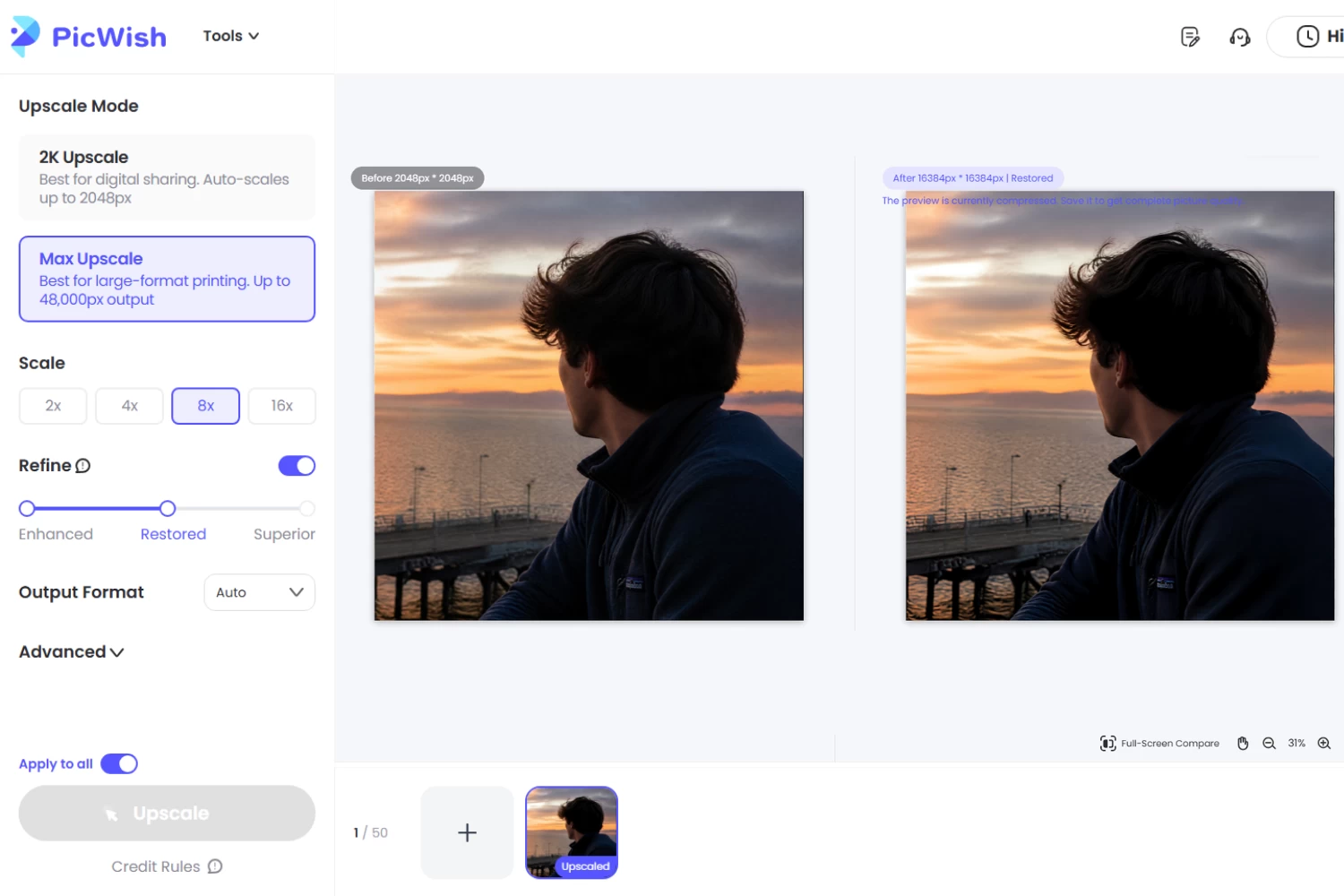
Pros:
- Simple interface for beginners
- Supports a wide range of common image formats
- Offers several enlargement levels for different use cases
- Suitable for both personal and commercial image workflows
Cons:
- Very high enlargement levels may take longer to process
- Extremely low-quality source images may still show limitations after upscaling
How to Batch Upscale Images with PicWish
- Open PicWish’s batch image upscaler tool.
- Click Upload Images and choose the images that you want to upscale.
- Set your preferred Upscale Mode, Scale level, and other preferential settings.
- Click Upscale to start the batch process.
- Review the results and click Save to download.
Best for: eCommerce sellers, creators, and users who need an easy way to enhance large collections of images.
2. Fotor
Fotor combines AI image upscaling with a broader set of photo editing and enhancement tools. This makes it useful for users who want to do more than simply enlarge their images. After processing a batch, you can continue editing the photos within the same platform instead of moving them to another editor. Its AI upscaler offers 2x and 4x enlargement, while its batch enhancement tools can help improve clarity and sharpness across multiple photos. This makes Fotor particularly convenient for creators who regularly prepare images for websites, social media, or marketing materials.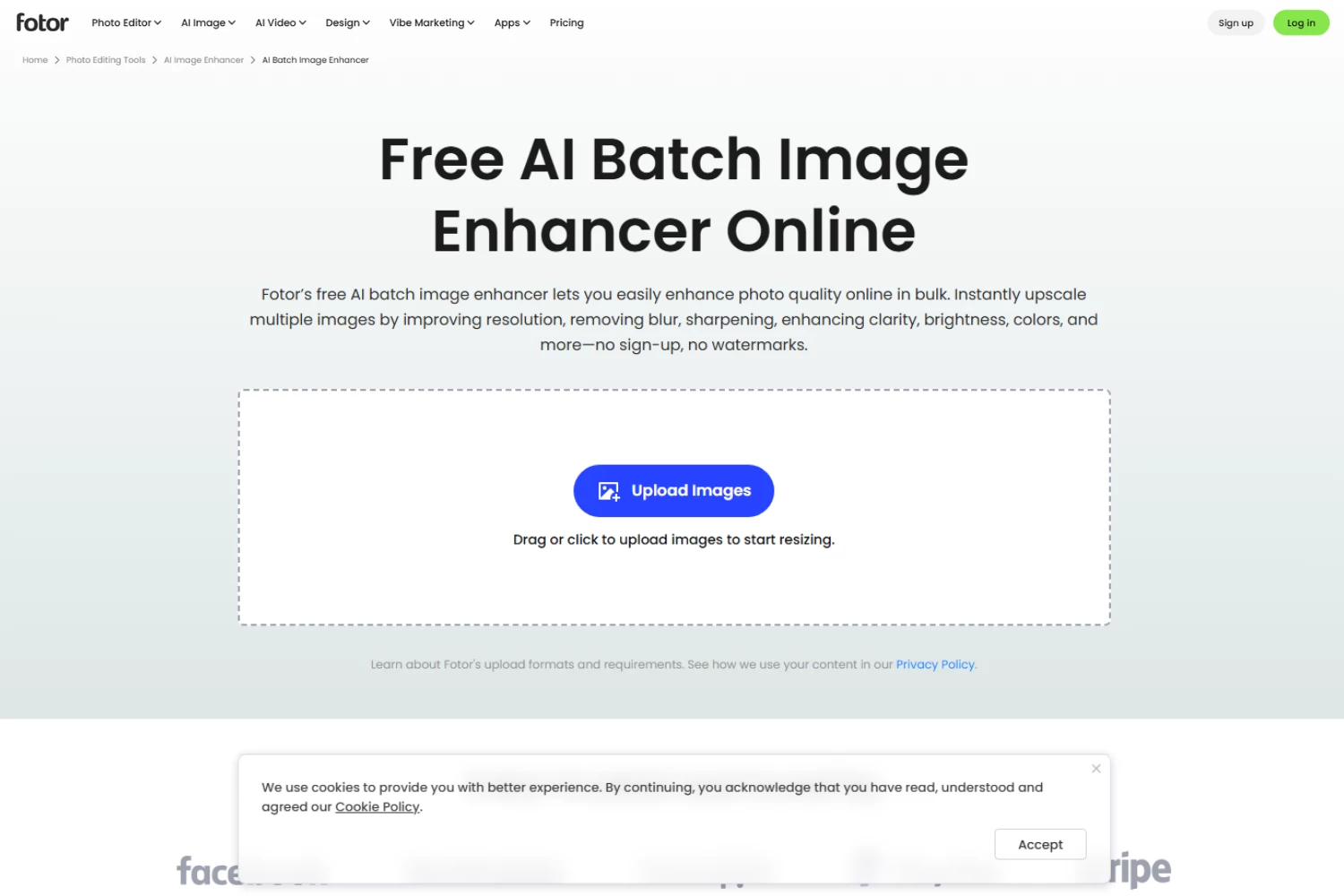
Pros:
- Convenient all-in-one editing platform
- Good choice for users who need additional photo adjustments
- Supports bulk downloads
- Beginner-friendly interface
- Useful for preparing images for different online platforms
Cons:
- Upscaling options are more limited than some competitors
- Some high-resolution features may require a paid plan
Best for: Users who want to upscale images while having access to additional photo editing and enhancement features.
3. VanceAI
VanceAI is designed with more advanced image-processing workflows in mind. In addition to its online tools, it offers a batch image upscaler in its Windows application for users who need to work with large collections of images. This makes it a more suitable choice for photographers, designers, and businesses handling substantial volumes of files. Its AI image enlarger offers several enlargement options, while the platform also provides specialized AI tools for tasks such as sharpening, denoising, background removal, and image enhancement. For businesses with more technical workflows, VanceAI also provides API access for integrating image processing into applications or automated systems.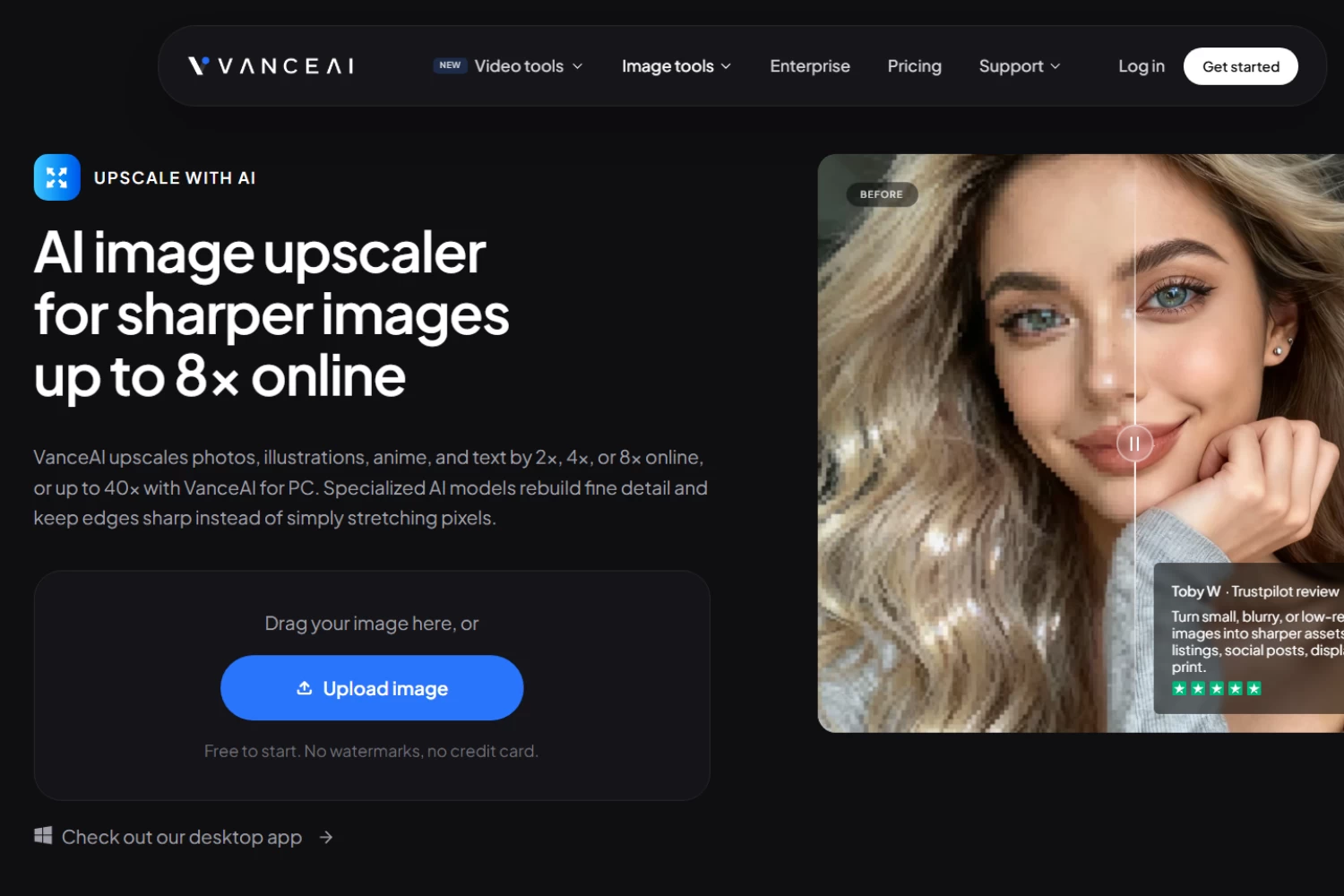
Pros:
- Suitable for high-volume image workflows
- Offers a wide selection of specialized AI tools
- Desktop application provides a more extensive workflow
- API availability can benefit developers and businesses
- Better suited to users who need more control over image processing
Cons:
- More advanced features can make the platform less beginner-friendly
- Users looking for a quick browser-only solution may find the desktop workflow unnecessary
- The large number of tools can make it harder to identify the right option at first
Best for: Professionals, businesses, and developers who need a more extensive image-processing workflow.
4. Let’s Enhance
Let’s Enhance is an AI image enhancement platform built for improving photos and visual assets for both digital and print projects. Beyond enlarging images, it provides tools for sharpening, color correction, and other adjustments that can help give a collection of images a more polished and consistent appearance. Its workflow is particularly useful when you need to prepare images for professional purposes, such as product listings, marketing materials, presentations, or printed content. Instead of using separate tools for enlargement and basic enhancement, you can handle several parts of the process within the same platform.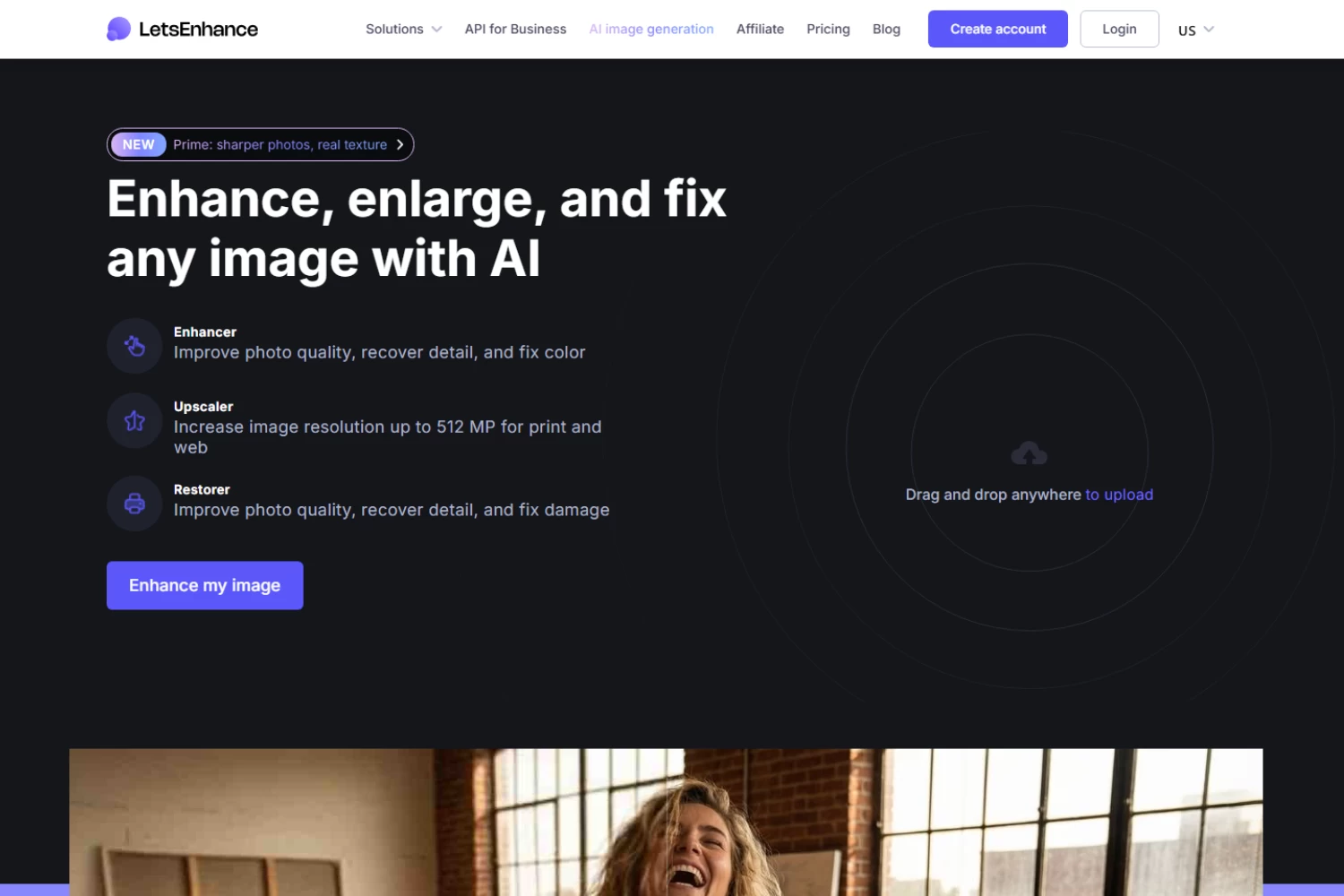
Pros:
- Combines upscaling with other image enhancement features
- Helpful for maintaining a consistent look across image collections
- Well suited to professional and commercial projects
- Supports both digital and print-oriented workflows
- Offers more control than a basic image enlarger
Cons:
- May be more feature-heavy than casual users need
- Some advanced capabilities are available only on paid plans
- Not the simplest choice for users who only need quick image enlargement
Best for: Users who need to enhance and prepare multiple images for professional or print use, particularly for business, photography, and creative projects.
5. Pixelcut
Pixelcut’s Bulk Image Upscaler is designed for users who need to process very large image collections. It can handle up to 10,000 images in a single batch, making it one of the strongest options for bulk image upscaling. The tool also applies AI sharpening and denoising during the upscaling process. After processing, users can download the results individually or as a ZIP file, which is convenient for large eCommerce catalogs, photography archives, and other extensive image collections.
Pros:
- Extremely high batch limit
- Supports Dropbox for importing large image collections
- Allows batch downloads as a ZIP file
- Combines upscaling with sharpening and denoising
- Well suited to large eCommerce catalogs
Cons:
- Upscaling is limited to 2x and 4x
- Large batches may require more processing time
Best for: Users who need to upscale very large image collections at once, particularly for eCommerce, photography, and professional projects.
Comparison of the Best Batch Image Upscalers
| Tool | Batch Capability | Maximum Upscale | Best For |
| PicWish | Up to 50 images | 16x | High-resolution batch upscaling |
| Fotor | Up to 50 images | 4x | Upscaling and photo enhancement |
| VanceAI | 10 images on web; 100+ on Windows | Up to 40x | Large professional workflows |
| Let’s Enhance | Up to 20 images | Up to 16x | Print and professional images |
| Pixelcut | Up to 10,000 images | 4x | Very large image collections |
When Should You Use Bulk Image Upscaling?
A batch image upscaler is especially useful when you have many images that need similar treatment.
eCommerce Product Photos
Online stores often have dozens or hundreds of product images. Upscaling them in bulk can help prepare clearer visuals for product pages, catalogs, and promotional materials.
Photography Collections
Photographers may need to prepare a large collection of images for a website, portfolio, gallery, or client presentation. Batch processing can reduce repetitive work.
Social Media Content
Creators and marketers often work with multiple images for campaigns. Bulk upscaling can help prepare images for platforms that require larger or higher-resolution visuals.
Print Materials
Images intended for posters, brochures, banners, or other printed materials may need higher resolution. AI upscaling can help increase their dimensions before they are placed into a print layout.
Old or Low-Resolution Images
If you have a collection of older photos with small dimensions, batch processing can help enlarge them more efficiently than editing each photo separately.
Marketing and Advertising
Marketing teams may need multiple product shots, campaign visuals, or promotional images in higher resolution. A batch image upscaler can make this process more manageable.
FAQs
📌 What is the best batch image upscaler?
The best batch image upscaler depends on your needs. PicWish is a strong option if you need to process up to 50 images and want enlargement options up to 16x. Fotor is another useful choice for users who want batch upscaling alongside other photo enhancement tools.
📌 Does batch upscaling reduce image quality?
Batch processing itself does not necessarily reduce image quality. The final result depends more on the AI model, enlargement level, original image quality, and output settings. For the best results, avoid enlarging extremely small or heavily compressed images more than necessary.
📌 Do AI upscalers process multiple images simultaneously or in a queue?
Yes. AI-powered batch upscalers can process multiple images within one workflow. However, “batch processing” does not always mean every image is processed simultaneously. Some services place multiple images into a processing queue. VanceAI, for example, notes that selecting multiple images does not necessarily mean they are processed simultaneously on its service.
Conclusion
A batch image upscaler saves time by enlarging multiple images at once, making it useful for websites, eCommerce, social media, and print. The best tool depends on your needs. PicWish supports up to 16x enlargement and 50 images per batch. Fotor is good for general use, while VanceAI works well for large desktop workflows. Check batch limits, upscale levels, output quality, formats, and free-plan restrictions before choosing.


Leave a Comment