

Quick Answer: What Is The Best Way To Remove Product Photo Backgrounds In Bulk?
The fastest way to remove backgrounds from product photos in bulk is to use a batch background remover that supports multiple uploads, transparent PNG output, white background options, resizing, and bulk download.
For ecommerce sellers, the goal is not only to remove the original background. The final image should also look clean, centered, consistent, and ready to use on product pages, marketplaces, catalogs, ads, or social media.
What Is A Batch Background Remover For Product Photos?
A batch background remover for product photos is a tool that removes backgrounds from multiple product images at the same time.
Instead of uploading one photo, waiting for the result, downloading it, and repeating the process for every item, batch editing allows sellers to process many images in one workflow.
This is especially useful for:
- Ecommerce stores with large product catalogs
- Shopify, Amazon, Etsy, eBay, and WooCommerce sellers
- Marketplace teams preparing new listings
- Dropshipping sellers working with supplier photos
- Product photographers editing client images
- Agencies managing product visuals for several brands
- Businesses launching seasonal collections or new SKUs
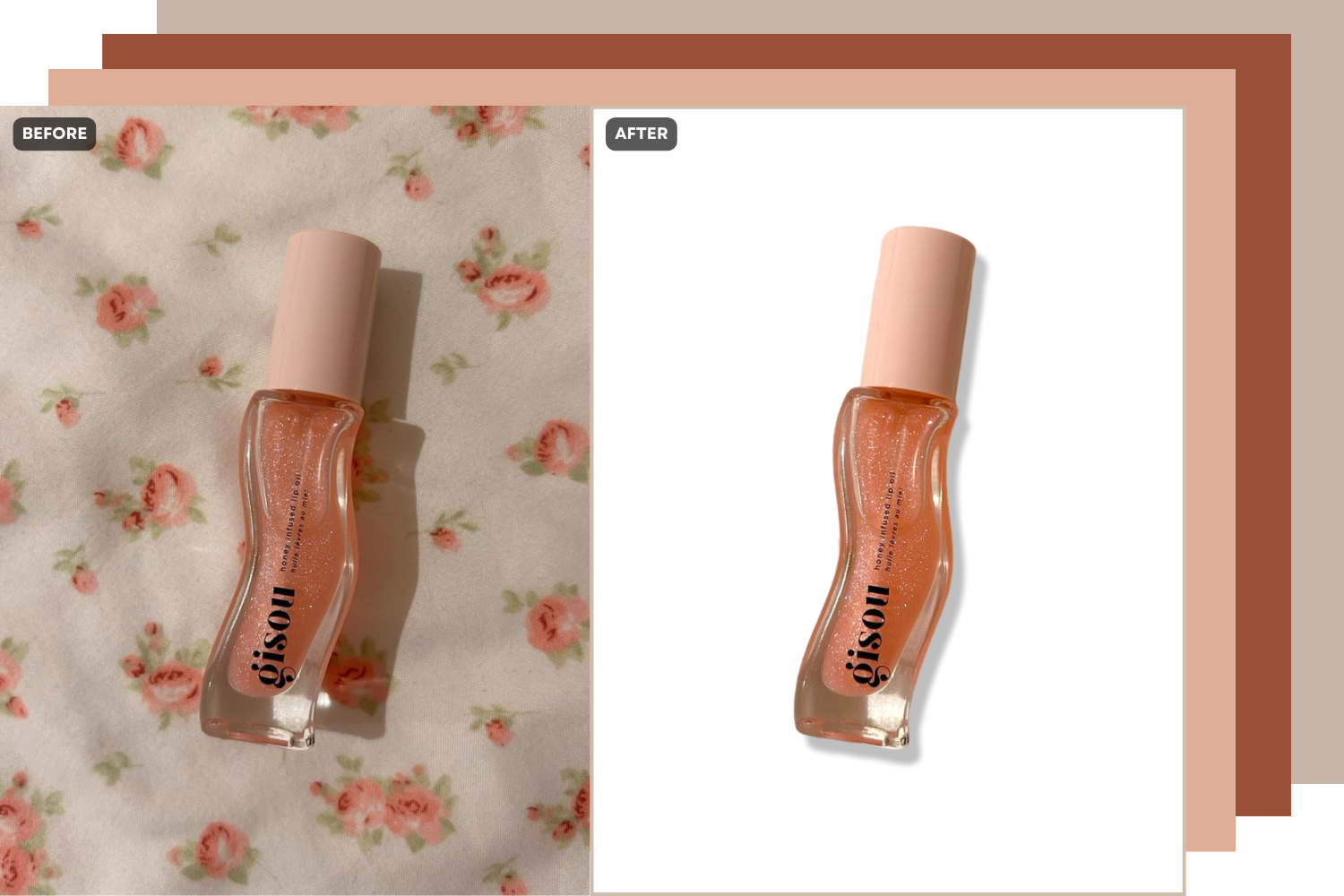
A bulk background remover helps turn messy, inconsistent, or supplier-provided images into cleaner product visuals that are easier to use across different sales channels.
Why Product Photo Backgrounds Matter In Ecommerce
Product images do more than make a listing look nice. They help shoppers understand the product quickly.
A distracting background can make the item harder to inspect. Uneven lighting can hide texture, shape, or color. Different image sizes across a product grid can make a store look less professional. On marketplaces, poor product photos can also reduce trust and make listings feel less reliable.
Clean product backgrounds help sellers:
- Keep attention on the product
- Create clearer thumbnails
- Improve product page consistency
- Prepare images for marketplaces
- Reuse product cutouts for ads or banners
- Reduce manual editing time
- Build a more professional ecommerce catalog
For ecommerce, consistency matters. If one product photo has a gray floor, another has a cluttered desk, and another has a strong shadow, the catalog can feel messy even when the products are good.
A clean background makes the product easier to compare, easier to understand, and easier to present across multiple platforms.
Batch Background Removal Vs Manual Editing
Manual editing gives more control, but it does not scale well when a seller needs to prepare dozens or hundreds of images.
| Editing Method | Best For | Main Advantage | Main Limitation |
| Manual editing in Photoshop | Complex products, premium campaigns, difficult details | Full control over every detail | Slow and costly for large batches |
| Single-image background remover | Occasional edits or small product sets | Quick for one image | Repetitive when editing many photos |
| Batch background remover | Catalogs, marketplace images, product launches | Removes backgrounds from many images faster | Still needs review for difficult edges or reflections |
| Outsourced editing | Teams without internal editing capacity | Saves internal time | Can be expensive and slower when revisions are needed |
For most ecommerce teams, the goal is not to remove human review completely. The goal is to reduce repetitive work so sellers can spend more time checking image quality, product details, and final presentation.
When Should You Use A Bulk Background Remover?
A bulk background remover becomes useful when manual editing starts taking too much time.
You may need batch background removal if:
- You are launching a new product collection
- You received supplier photos with inconsistent backgrounds
- You need white background product photos for marketplaces
- You are preparing images for Shopify, Amazon, Etsy, or eBay
- You manage hundreds of SKUs
- You need transparent PNGs for design or advertising
- You want to update old catalog images
- You are preparing product variants in different colors, sizes, or styles
- You want to create a cleaner and more consistent product grid
For example, if a seller needs to prepare 300 product photos manually, the process can take hours or even days. A batch workflow helps reduce the repetitive part of the work and makes the editing process faster.
How To Remove Backgrounds From Product Photos In Bulk With PicWish
PicWish helps ecommerce sellers remove backgrounds from multiple product photos and prepare them for real selling scenarios.
Instead of editing each image one by one, you can use a batch workflow to create cleaner cutouts, white-background product photos, transparent PNGs, and more consistent visuals for online stores and marketplaces.
Here is a simple workflow.
1. Upload Your Product Photos
Start by uploading the product images you want to edit.
For better results, choose photos where the product is clearly visible and not heavily blocked by hands, props, packaging, or other objects.
2. Remove Backgrounds In Batch
Use PicWish to remove backgrounds from product photos in bulk. Upon upload, the tool automatically detects the product and separates it from the original background, helping you create clean product cutouts faster than manual editing.
3. Choose The Right Background
After background removal, decide how each product image will be used.
For marketplace listings, a clean white background is often the safest choice. In terms of your own ecommerce store, you may prefer a neutral background, brand color, or soft studio-style background. For ads or social posts, you may want a more creative visual style.
4. Resize And Align Your Product Images
Removing the background is only part of the process. Product images also need to look consistent when they appear together. Check whether each product is centered, properly scaled, and cropped for the platform where it will be uploaded.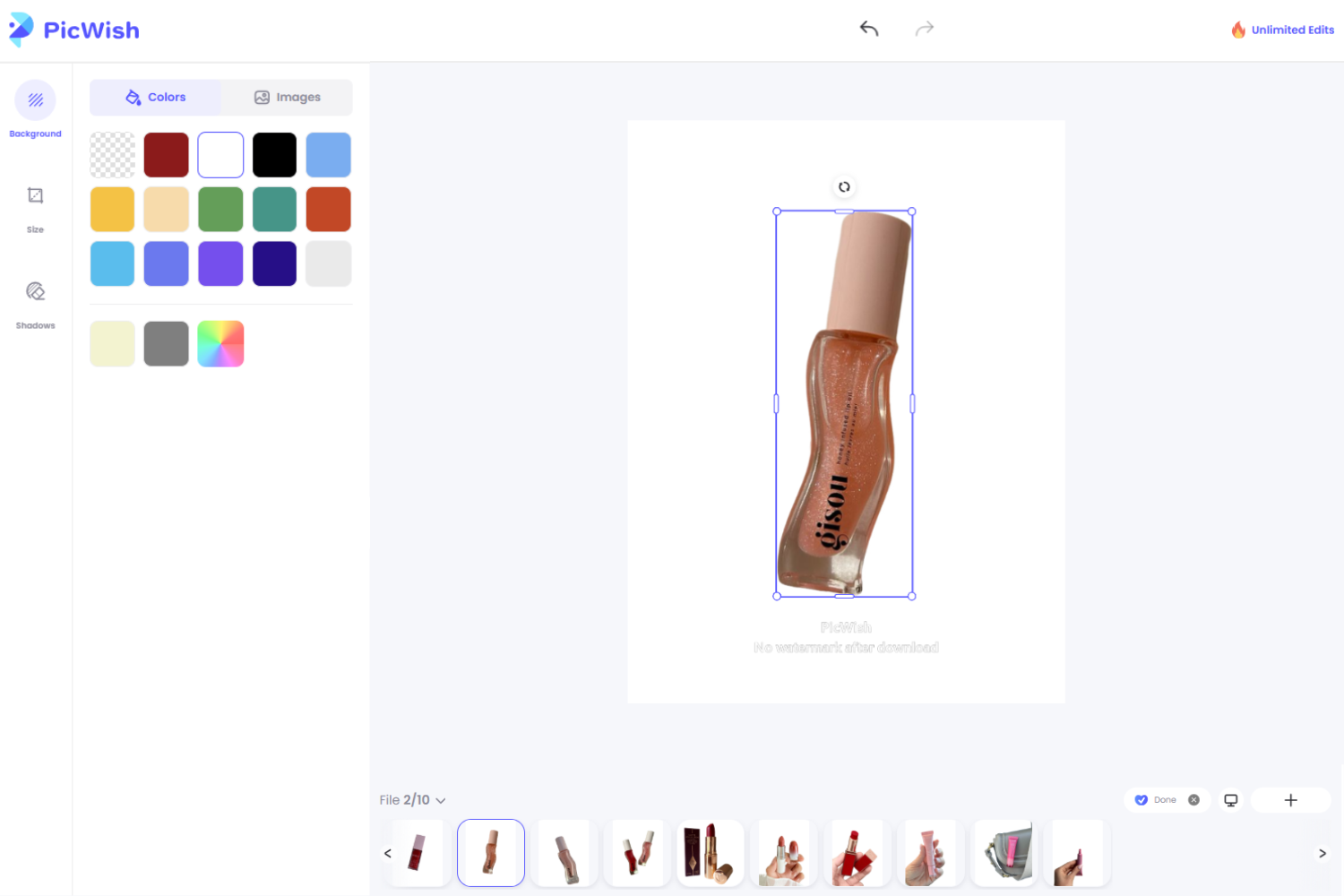
5. Adjust Lighting And Shadows
A product cutout can look flat if lighting and shadows are ignored. After removing the background, review whether the all the items still look natural. Soft shadows can help anchor the product visually. Lighting adjustments can make textures, edges, and surfaces easier to inspect.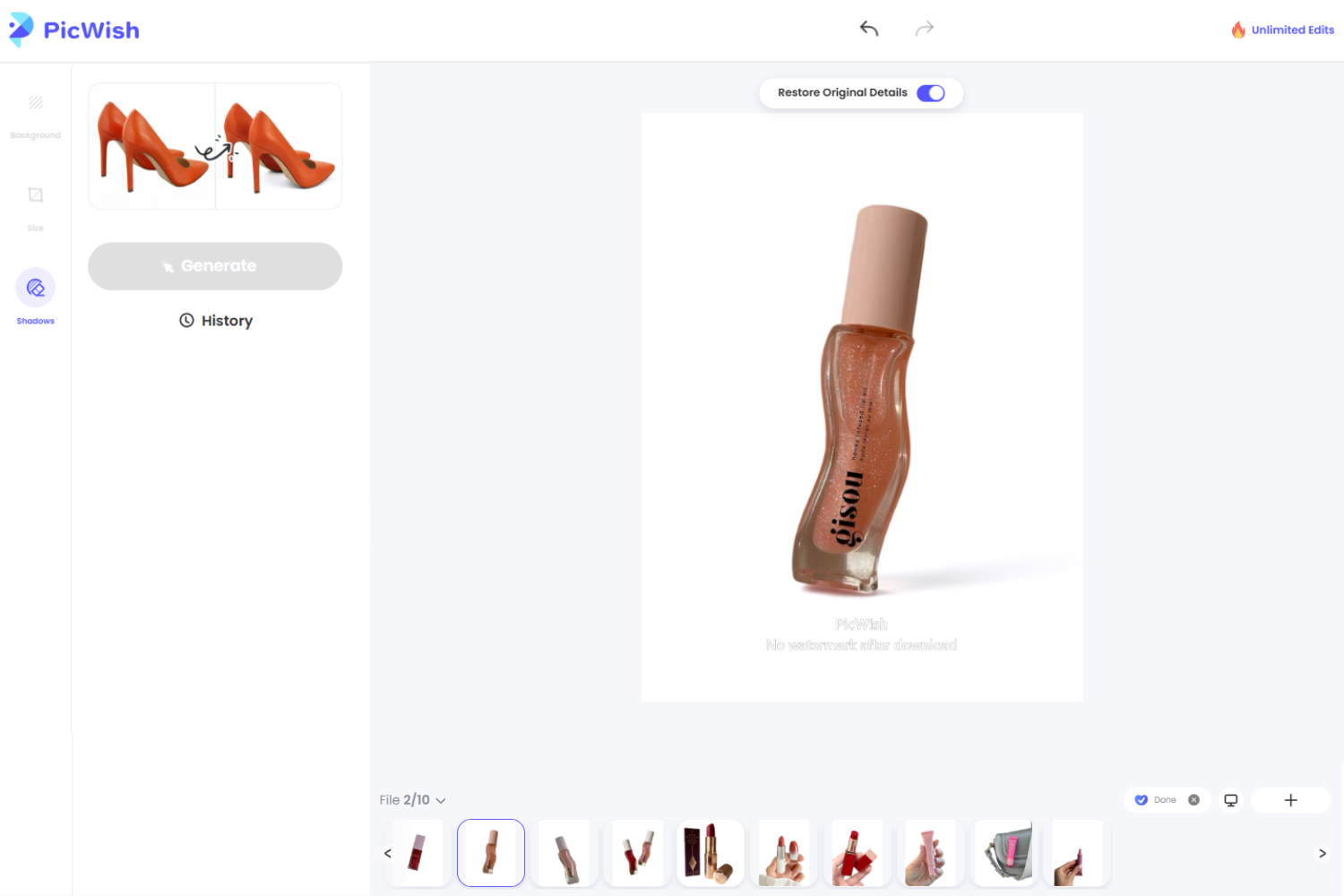
6. Review Product Details Before Exporting
Batch editing saves time, but every product photo should still be checked before publishing.
7. Export Images For The Right Channel
Once your product images are ready, export them in the right format.
Use:
- PNG for transparent backgrounds
- JPG for white-background product photos and smaller file sizes
- ZIP download when exporting a full batch
Common Mistakes To Avoid
- Using Low-Quality Source Images
- Treating Every Product The Same
- Ignoring Image Size Requirements
- Forgetting About Shadows
- Skipping Final Review
FAQ
📍Can I Remove Backgrounds From Product Photos In Bulk?
Yes. With a tool like PicWish, you can remove backgrounds from multiple product photos in one workflow and prepare cleaner images for catalogs, marketplaces, product pages, and ads.
📍Should Product Photos Have A White Background?
A white background is often useful for marketplaces and clean product pages because it keeps attention on the item. However, some stores may also use transparent, neutral, branded, or lifestyle backgrounds depending on the image’s purpose.
📍What File Format Should I Use After Removing The Background?
Use PNG if you need a transparent background, and JPG for white-background product photos with smaller file sizes.
📍Is Batch Background Removal Useful For Shopify, Amazon, Etsy, And eBay?
Yes. Batch background removal is useful for sellers on Shopify, Amazon, Etsy, eBay, and other platforms because it helps create cleaner and more consistent product images at scale.
📍Do I Still Need To Review Images After Batch Editing?
Yes. Batch editing can save time, but product images should still be checked for edge quality, color accuracy, labels, shadows, reflections, and important product details before publishing.
📍Can I Use Batch Background Removal For Supplier Photos?
Yes. Batch background removal is useful for supplier photos because these images often come with inconsistent backgrounds, sizes, lighting, or visual styles. Removing backgrounds in bulk can help standardize product images before uploading them to your ecommerce store.
Conclusion
A batch background remover for product photos helps ecommerce sellers save time, improve catalog consistency, and prepare cleaner visuals for online stores and marketplaces. Instead of removing backgrounds one by one, sellers can process multiple product images in a single workflow, then resize, align, review, and export them for different channels. For better ecommerce results, background removal should be part of a complete product photo workflow. Clean edges, correct sizing, natural shadows, proper file formats, and final quality checks all matter.



Leave a Comment