
Quick Answer: How to Upscale AI Artwork
The easiest way to upscale AI artwork is by using an AI tool that increases image resolution while preserving details, textures, and colors. AI analyzes the artwork to intelligently reconstruct fine details instead of simply stretching the image, making it ideal for enlarging illustrations, anime, concept art, and Midjourney images without noticeably reducing quality.
Why Does AI Artwork Lose Quality When Enlarged?
AI-generated artwork may look detailed at its original size, but image quality often decreases when you enlarge it. This happens because many AI image generators export artwork at a limited resolution, leaving fewer pixels available to maintain sharp details in larger sizes.
When an image is enlarged, the existing pixels are stretched to fill more space. As a result, fine details can appear softer, lines may lose definition, and textures can become less noticeable. If the artwork has also been compressed during downloading or sharing, additional image data may be lost, causing visible artifacts and further reducing quality.
These issues are common with artwork created using Midjourney, Flux, Stable Diffusion, DALL·E, and other AI image generators. If you plan to print your artwork, use it for presentations, or display it on larger screens, it’s important to upscale AI artwork with an AI-powered tool that increases resolution while preserving important details.
How to Upscale AI Artwork with PicWish
Step 1. Launch PicWish Upscale Image
Go to the PicWish website and open the Upscale Image tool to begin.
Step 2. Import Your AI Artwork
Select Upload Images, then choose the AI-generated artwork you’d like to enlarge. PicWish supports popular image formats, including JPG, JPEG, PNG, HEIC, and WebP.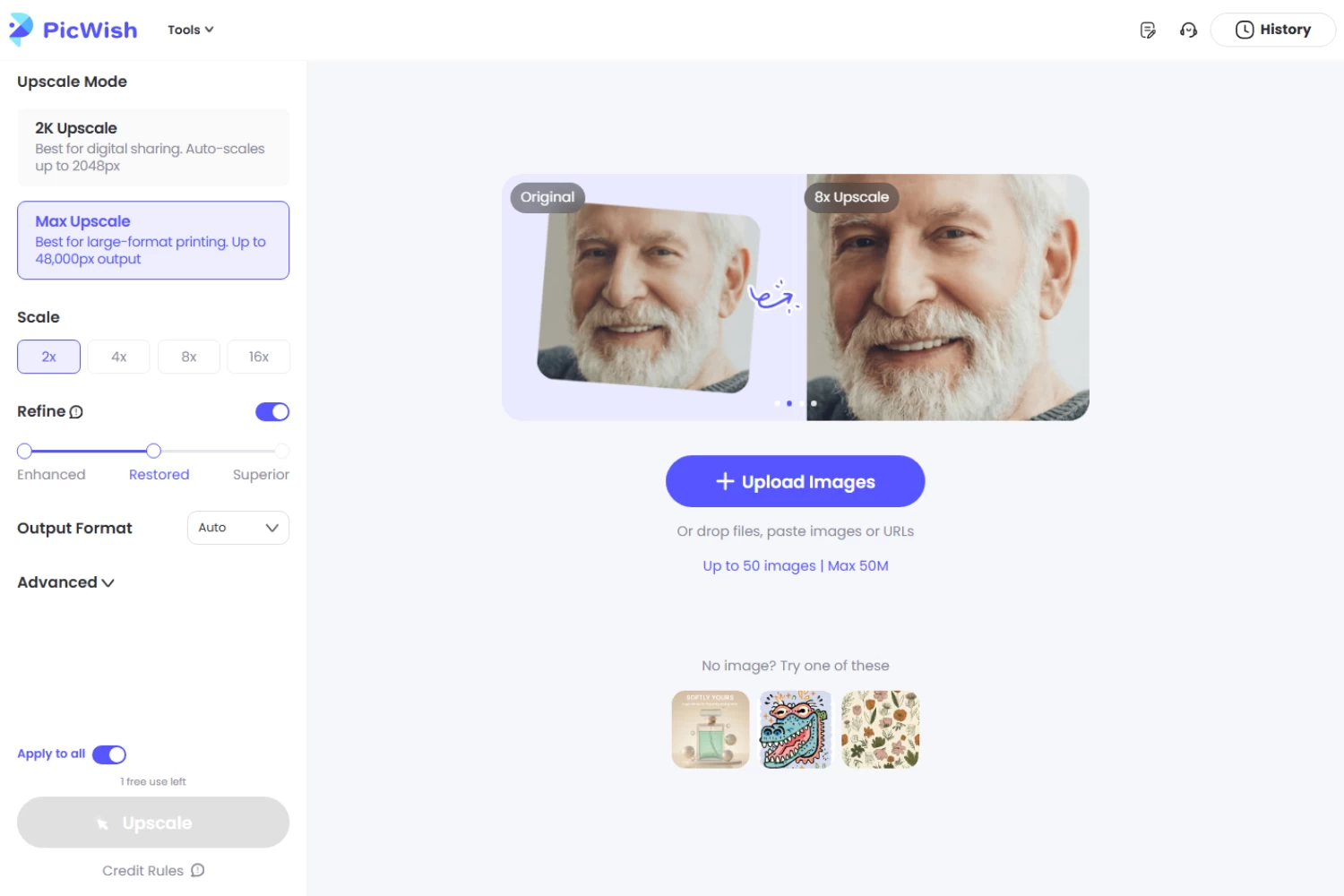
Step 3. Choose an Upscale Level
After the image is uploaded, select your preferred upscale level. PicWish uses AI to enlarge the artwork while preserving fine details, clean lines, textures, and colors for a sharper, higher-resolution result.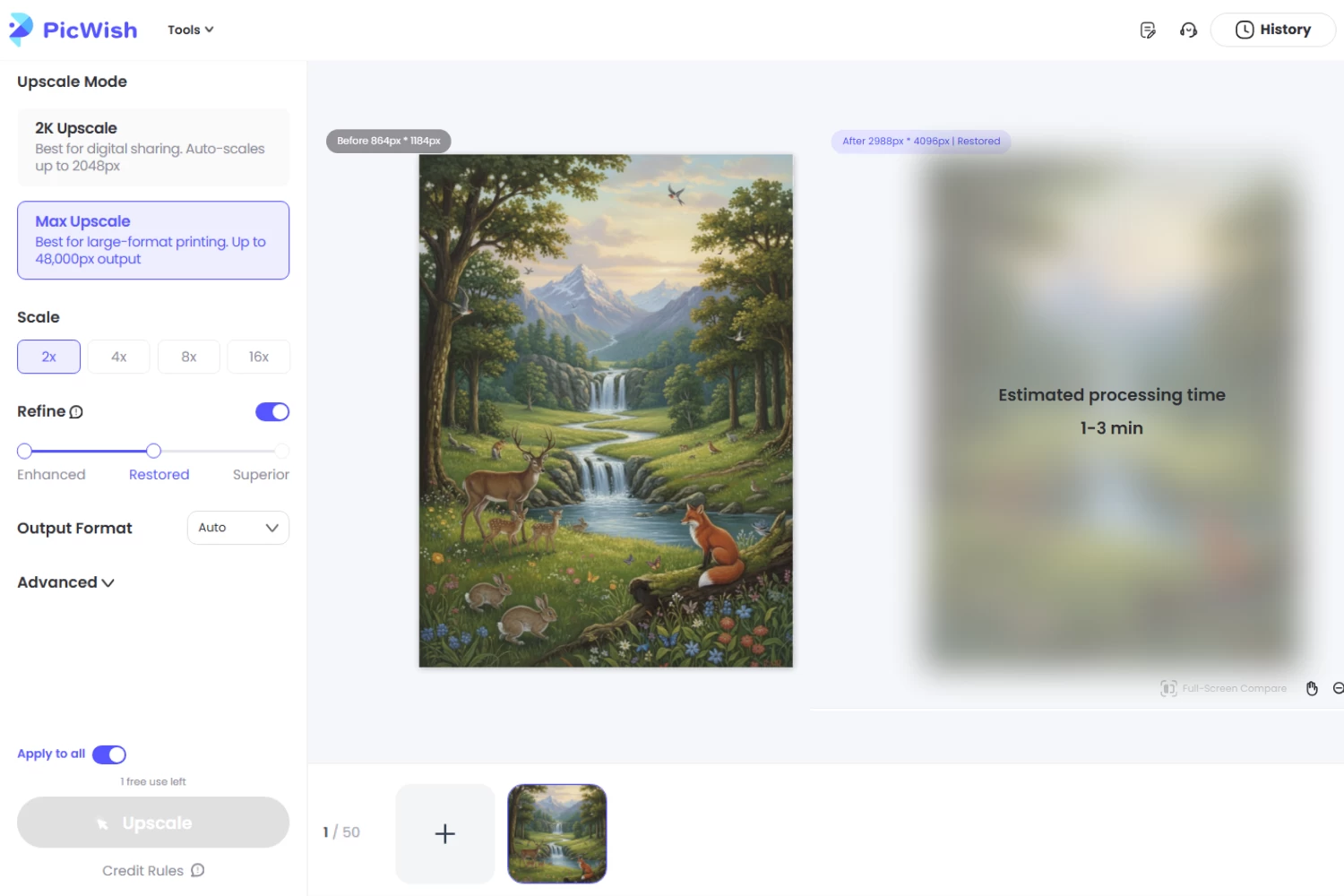
Step 4. Click Upscale Then Preview the Upscaled Artwork
Compare the before-and-after results to examine the improvements.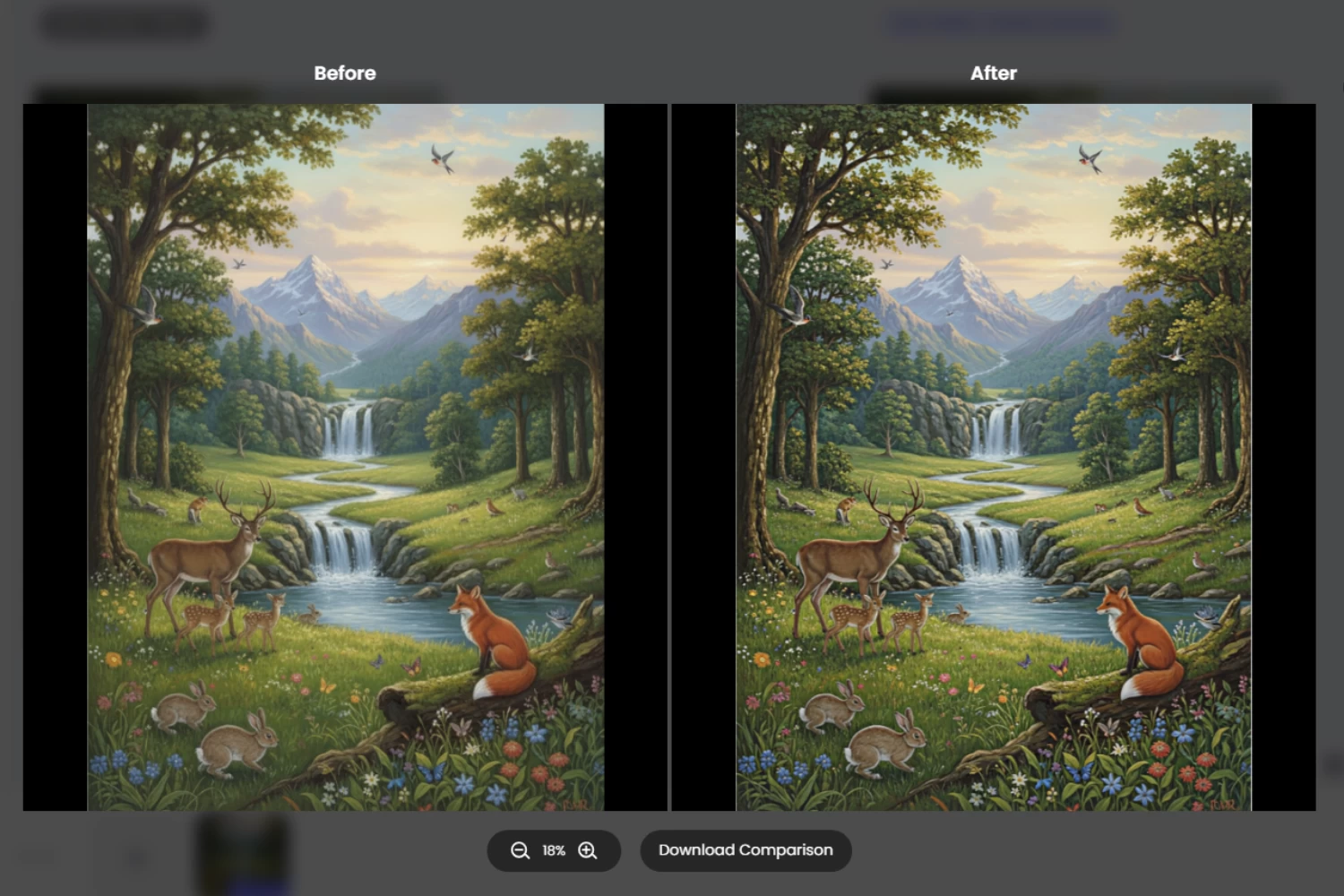
Step 5. Save the Final Image
Click Download to save your upscaled AI artwork. The high-resolution image is ready for printing, digital portfolios, wallpapers, presentations, or other creative projects.
Tips for Getting Better Upscaling Results
Upscaling can make AI-generated artwork look sharper and more suitable for high-resolution use. To achieve the best results, keep these tips in mind before you upscale AI artwork:
- Generate the largest image size available. Starting with the highest export resolution gives AI more visual information to work with during upscaling.
- Save the original artwork before sharing it online. Social media platforms often compress images, which can reduce detail and affect the quality of the upscaled result.
- Choose PNG for artwork with fine details. PNG helps preserve clean lines, textures, and color transitions better than heavily compressed formats.
- Upscale gradually if you need a much larger image. Extremely small artwork may still lose quality if enlarged too aggressively in a single step.
- Upscale before adding text, borders, or graphic elements. Enhancing the artwork first helps keep additional design elements crisp and properly aligned.
Following these best practices helps preserve fine details, maintain vibrant colors, and produce cleaner AI-generated artwork for printing, portfolios, wallpapers, and other creative projects.
When Should You Upscale AI Artwork?
Upscaling isn’t always necessary, but it becomes valuable when your artwork needs to be displayed at a larger size or with greater clarity. By choosing to upscale AI artwork, you can preserve important details and create visuals that look more polished across both digital and print formats.
Here are some situations where AI upscaling is especially useful:
- Printing posters and canvas art: Increase the resolution to create sharper, high-quality prints with clearer details.
- Selling digital prints: Deliver higher-resolution artwork that offers better quality for customers and online marketplaces.
- Building online portfolios: Showcase your illustrations and creative projects with cleaner, more professional-looking visuals.
- Sharing artwork on social media: Upload sharper images that maintain their visual impact across different platforms.
- Creating wallpapers: Produce high-resolution desktop and mobile wallpapers with improved clarity and detail.
- Presenting concept art: Display artwork more clearly during client presentations, design reviews, or creative pitches.
- Designing game assets: Prepare character designs, environments, and other visual assets for larger displays or development workflows.
- Marketing creative projects: Create polished visuals for promotional materials, websites, crowdfunding campaigns, or digital advertisements.
No matter how you plan to use your artwork, AI upscaling helps improve its resolution and overall presentation, making it better suited for professional, creative, and commercial projects.
FAQs
📍 What’s the best AI art enhancer?
The best AI art enhancer depends on your needs, but it should be able to increase resolution, sharpen details, and preserve textures and colors. PicWish Upscale Image tool offers AI-powered upscaling that helps improve the quality of AI-generated artwork in just a few clicks.
📍 Can I upscale a Midjourney image?
Yes. You can upscale a Midjourney image using AI-powered tools to increase its resolution and improve fine details. This is especially useful if you plan to print your artwork, create wallpapers, or display it on larger screens.
📍 Can AI improve digital illustrations?
Yes. AI can enhance digital illustrations by sharpening lines, refining textures, increasing resolution, and improving overall image quality. The improvements are most noticeable when the original artwork already contains clear visual details.
📍 What’s the best format for AI artwork?
PNG is generally the best format for AI artwork because it preserves image quality and fine details without introducing noticeable compression. If possible, save the original artwork in PNG before editing or upscaling.
Conclusion
AI-generated artwork often needs a higher resolution for printing, portfolios, and other professional projects. Using AI to upscale AI artwork helps preserve fine details while producing sharper, cleaner results. With PicWish’s Upscale Image tool, you can enlarge your artwork quickly and easily in just a few clicks. Try it today and give your AI creations the high-quality finish they deserve.


Leave a Comment