

How to Remove Lines From Image
A supposedly perfect photo can be ruined by lines, scribbles, or scratches. Removing these kinds of unwanted details in an image can be tricky, especially if you don’t have editing experience. Fortunately, now, there are many available AI tools to choose from. To save you the hassle of trying them all, let me introduce you to the easiest one — PicWish. With its AI Designer feature, you can remove lines from image as it can detect and remove unnecessary objects in your picture with just a prompt. Below is a step-by-step guide on how to use PicWish AI Designer in removing lines, scribbles, or scratches from your photos:
- First, go to the page of PicWish’s AI Designer. After that, upload your photo.

- Next, type your prompt by following this format: Remove [describe the unwanted element] from [describe the subject or area of the photo], while keeping [what you want to preserve] natural and intact.
![picwish ai designer input prompt]()

- Don’t forget to choose the AI model (Nano Banana, Flux Kontext, GPT Image-1, and Seedream 4.0) that you want to use, and the size you want for the generated result.
![picwish ai designer choose ai model]()

- After that click the send button and wait for the process to finish.
![picwish ai designer removal process]()
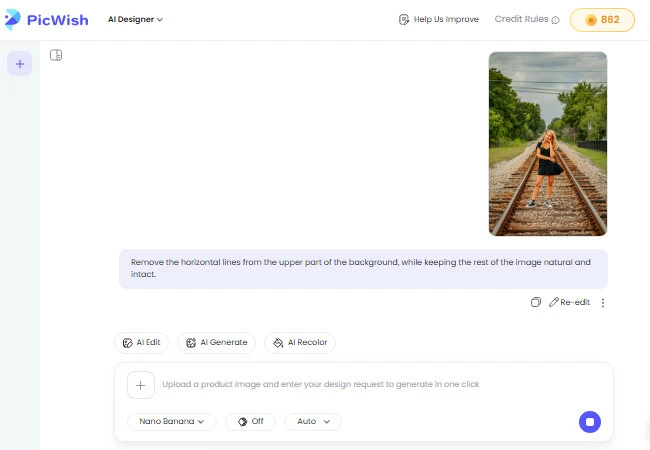
- Once done, click the image result and Download Image.
![picwish ai designer download image result]()
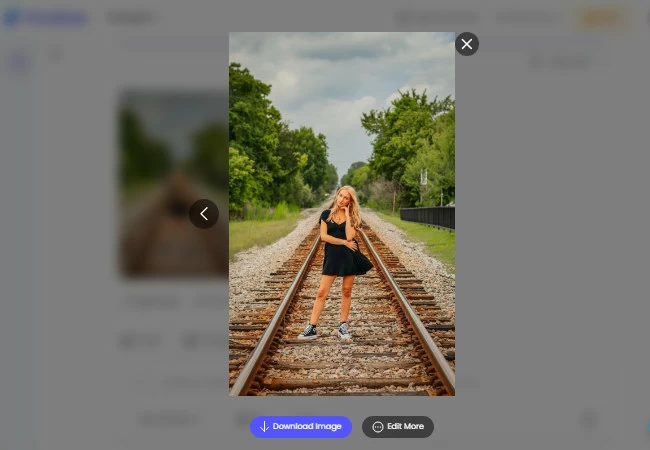
Note: If you prefer more control, PicWish also offers the Remove Object feature that allows you to manually select an area then remove lines from image automatically.
Other Use Cases of PicWish AI Designer
The AI Designer tool of PicWish is not limited to just removing lines from photos. You can also use it to:
- Remove unwanted people from the background.
- Erase tattoos effortlessly from skin in photos.
- Delete text or watermarks from images.
- Restore old photos by removing scratches and blemishes.
- Remove objects or clutter for a cleaner, more professional look.
Comparison Table: PicWish AI Designer vs. Traditional Object Removal
| PicWish AI Designer | Traditional Object Removal | |
| Application Method | Automatic AI-powered process | Manual editing with clone or healing tools |
| Ease of Use | Beginner-friendly; no skill required | Requires advanced photo editing skills |
| Time Consumption | Fast, and completes in seconds | Time-consuming manual process |
| Result Quality | Seamless and natural | Varies depending on editor’s skill |
For a quick and easy way to remove lines from image, PicWish is the ideal choice, thanks to its simple and precise AI.
FAQs on How to Remove Lines from Image
1. How can I remove drawn lines from an image using PicWish?
You can easily remove drawn lines by using PicWish’s AI Designer. Just upload your photo, input your prompt, choose an AI model and size, then let the AI do its work.
2. What is the best way to remove lines from photos online?
Using an AI-powered remover like PicWish is the fastest and most efficient way. It doesn’t require editing experience and works directly in your browser.
3. How do I erase scribble lines from photos using AI technology?
PicWish AI Designer uses advanced AI to erase scribble lines. Just input the prompt and the tool will intelligently analyze it and generate natural-looking results.
4. Can I easily remove lines from image without affecting the background?
Yes. With PicWish’s AI Designer, you can simply enter a prompt describing what you want to remove, and the AI will remove the mentioned lines while keeping the background intact.5. Is there a free tool to remove lines from photos online?
Yes, PicWish offers 2 free uses for its AI Designer tool users everyday.
Conclusion
There you have it! That’s how you remove lines from image. Now, it no longer requires hours of manual editing. With PicWish AI Designer, you can clean up images in seconds, no professional skills needed. Try PicWish today and experience how easy professional photo editing can be.


Leave a Comment