
How to Edit Text in Image Online
It has never been easier to edit text in image with PicWish, the industry-leading AI photo editor. Whether you need to edit text in a photo for work or a personal project, this detailed guide covers how to get it done seamlessly across all your devices.
Edit Text in Image on PC for Free
When you are working from a desktop, efficiency is key. PicWish is a powerful AI-driven platform that allows you to edit text on images with incredible precision. Moreover, it has a standout feature for PC users, which is its robust batch processing capability. With this, you can edit text in images in bulk for up to 50 files simultaneously, making it the perfect tool for large marketing campaigns or e-commerce catalogs.
Follow these simple steps to edit text from picture files on your computer:
Step 1: Visit the PicWish image text editor and then upload your image to the workspace.
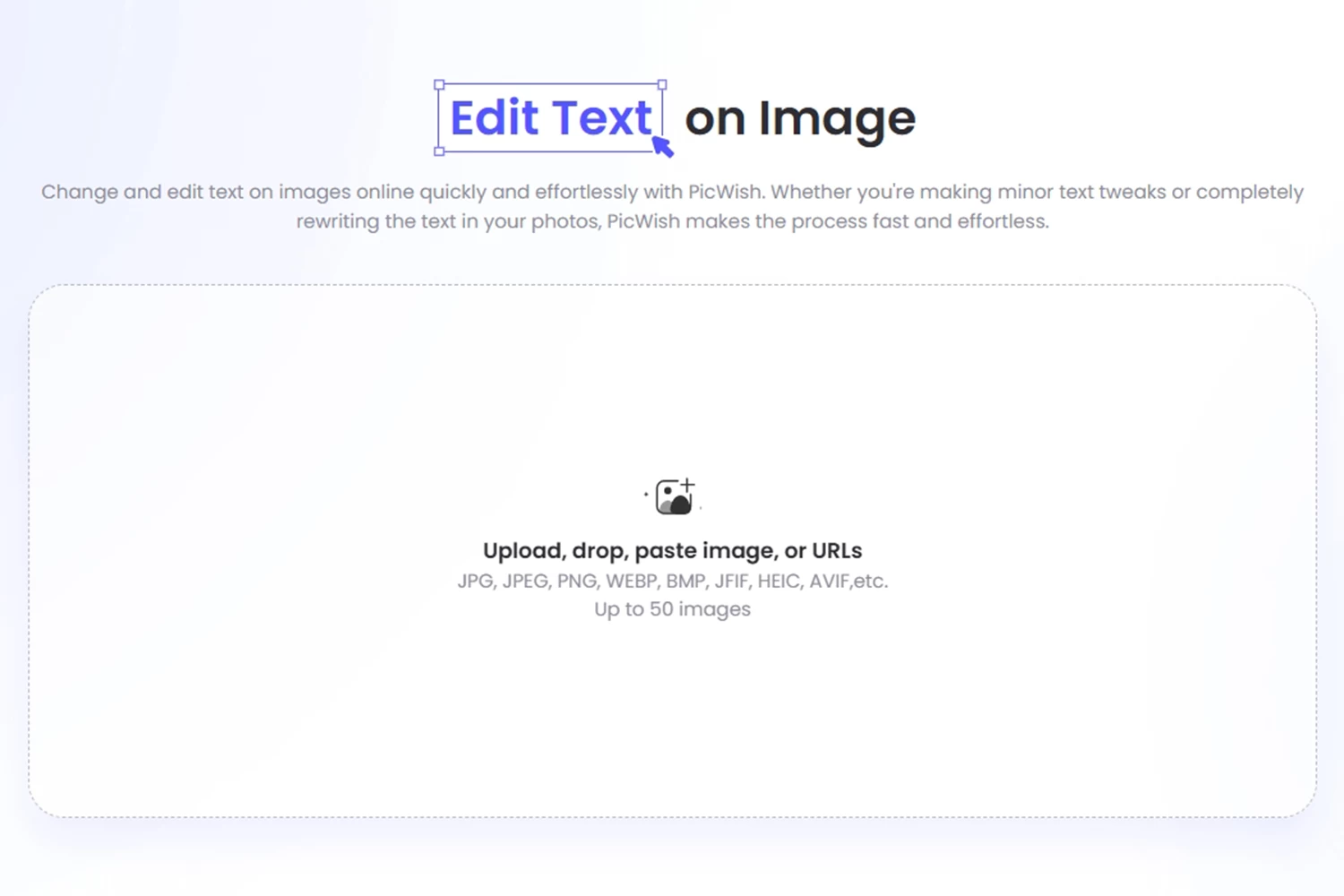
Step 2: On the right-hand toolbar, input the text you want to edit in the image, and then input the text to replace it.

Step 3: If you need to modify multiple sections of text, you can click the “+” button to add more modification items. Similarly, enter the text you want to modify and the target text to replace it.

Step 4: Click the Generate button, and the system will start processing. In just a few seconds, you will get the exact image text you desired. Then, hit the Save button at the upper right to save it to your computer.

Tip: If you are not entirely satisfied with the initial processing results, you can change the Generation Model. Try the advanced editing feature for more precise control when editing text in image files.
Edit Text on Photos Online for Mobile
You don’t have to rely only on a computer to edit text on image online, as PicWish is also perfect for mobile use. It allows you to access the tool directly via your browser link without needing to download or juggle multiple apps. Even better, by simply logging into your account, you can access your cross-platform edited image history, picking up right where you left off.
Here is how to edit text in picture files on your mobile device:
Step 1: Open the PicWish seamless text editing tool on your mobile browser and click Upload to upload the picture you need to modify.
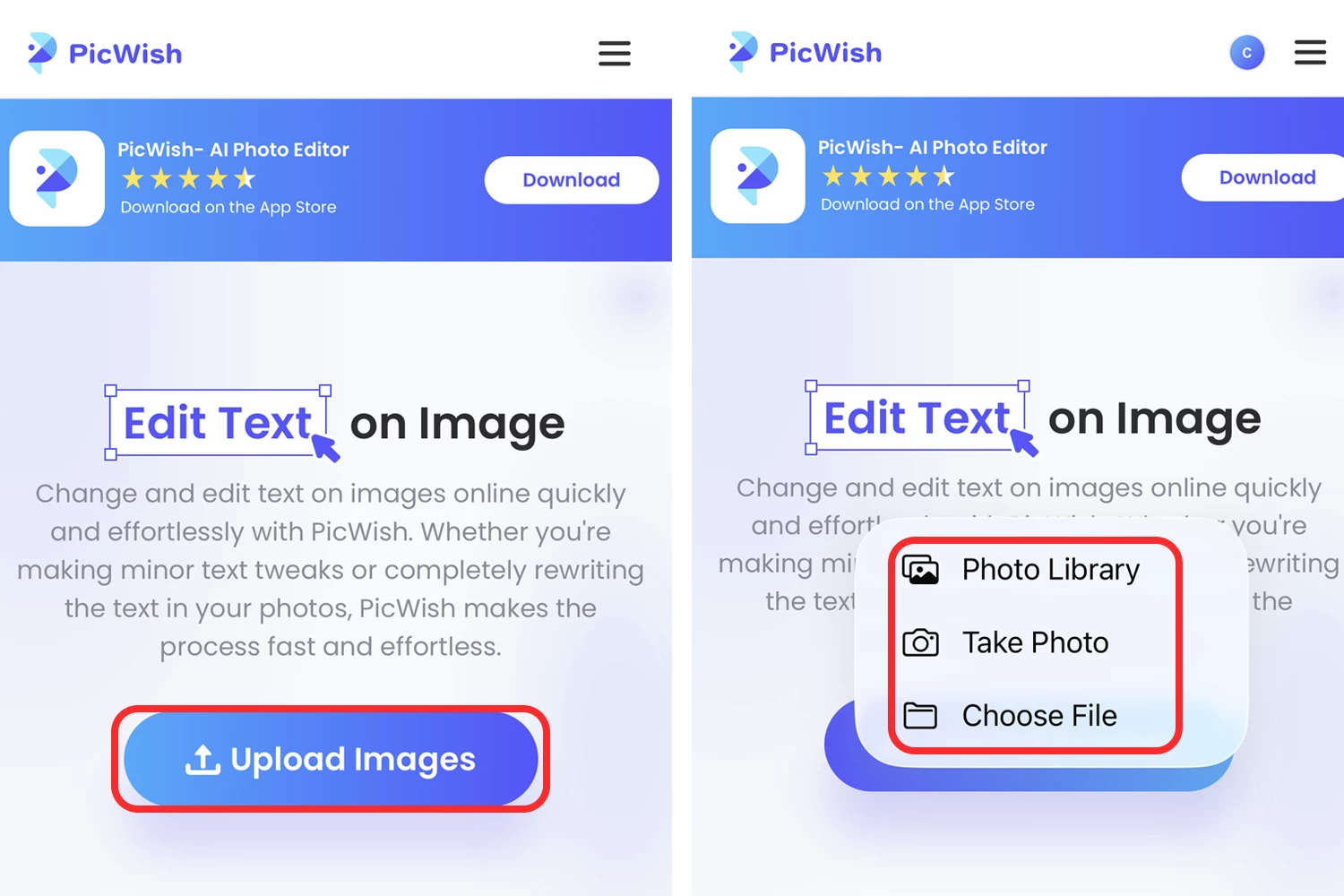
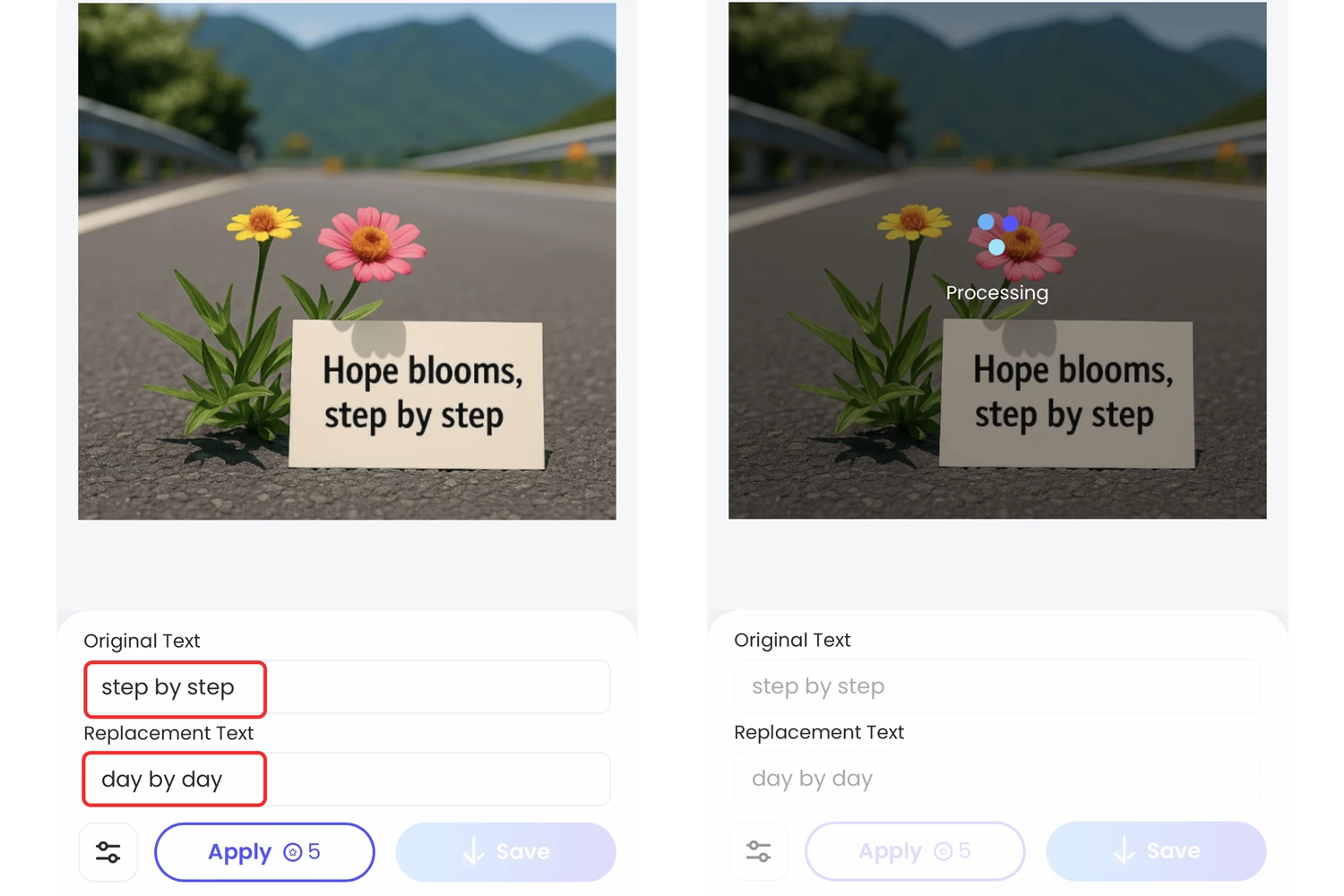
Step 2: Enter the original text you want to change and the replacement text, then click Apply to start processing.
Step 3: Once the processing is complete, click Save to download the perfectly processed picture to your mobile device.
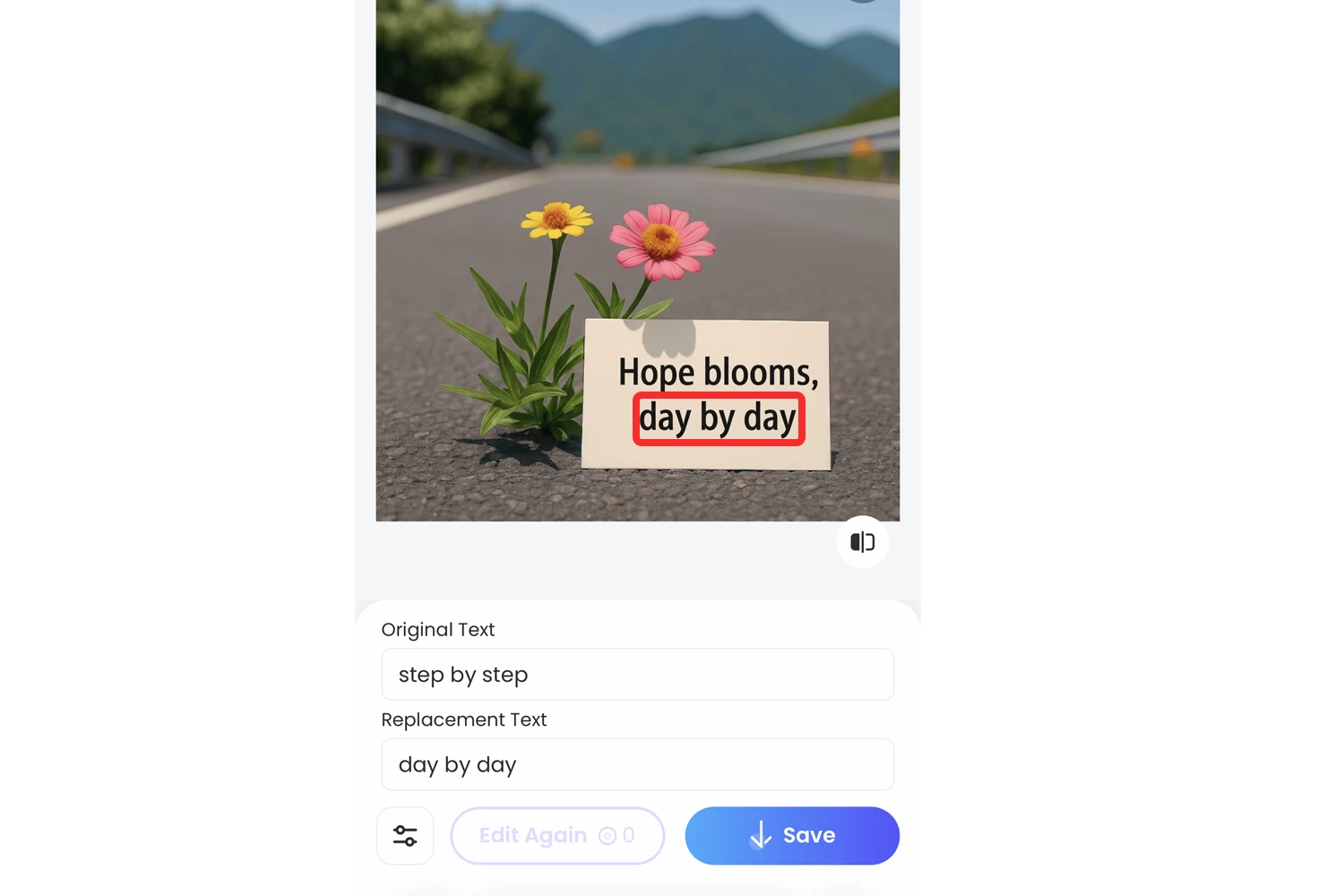
Tip: Generally, the standard “Generate text editing” is sufficient and handles the vast majority of edits brilliantly. However, if you need to edit text in an image that is highly complex, you can try the Advanced text editing mode. Just tap the button in the bottom left corner to switch modes.

Top Scenarios: Why Edit Text on a Picture?
Knowing how to edit text in a picture helps many people. It solves daily and professional problems easily.
- E-Commerce Sellers: Store owners quickly swap out pricing on promotional banners. They translate product specs to target international buyers, completely avoiding expensive new photoshoots.
- Marketing Teams: Marketers keep their campaigns highly agile. They edit text in photo files to instantly update event dates on posters or tweak ad creatives. They also localize viral memes for regional audiences.
- Business Professionals: Presenters often spot typos right before a big pitch. Instead of starting over, they directly edit text on charts or screenshots to fix outdated statistics.
- Everyday Users: Anyone can fix personal documents in seconds. People quickly correct misspelled names on digital invitations or alter dates on greeting cards. It also helps clean up scanned visual notes.
Frequently Asked Questions (FAQ)
1. Can we edit text in image files directly?
Yes. PicWish allows you to target and replace text directly on a flattened image layer without needing the original PSD or project file.
2. Can I edit text in image with the same font online? Will it change the font or size?
When you edit text in image online with PicWish, the AI intelligently analyzes the surrounding pixels, lighting, and typography. It automatically matches the original font style, weight, and size as closely as possible to ensure the final result looks completely natural.
3. Will editing text damage or blur the original image?
No. PicWish uses advanced AI inpainting technology to perfectly reconstruct the background behind the text. This means you can edit text in picture files without worrying about pixelation, blurriness, or damage to the original visual quality.
4. Will my data and uploaded images be leaked?
PicWish strictly protects your privacy and data security. Images uploaded to edit image text for free are processed securely, ensuring no data leakage.
5. Do I need professional graphic design skills to use this tool?
Not at all. You don’t need to understand complex layers, cloning stamps, or masking, since the interface is highly intuitive. That’s to say, if you can type, you can successfully edit text in image free with this tool.



Leave a Comment