
Quick Answer: How to Enhance AI-Generated Images
To enhance AI-generated images, use an AI photo enhancer that automatically sharpens details, improves clarity, enhances textures, and increases resolution. This is one of the fastest ways to improve AI image quality without advanced editing skills. Although AI can’t restore details that were never generated, it can significantly improve the overall appearance of portraits, product photos, marketing visuals, and other AI-generated images.
Why Do AI-Generated Images Sometimes Look Low Quality?
AI image generators can create impressive visuals from a simple text prompt, but the output won’t always be perfect. Depending on the AI tool and its export settings, AI-generated images may appear blurry, lack sharp details, or have a lower resolution than expected. These quality issues become even more noticeable when you enlarge the image or use it for printing, pushing many users to look for ways to enhance AI-generated images.
Several factors can affect the final image quality:
- Blurry output: Some AI-generated images may have soft edges or lack clarity, especially around complex details like faces, hands, or textures.
- Low-resolution downloads: Many AI image generators, particularly free versions, limit the resolution of exported images, making them look pixelated or less detailed when enlarged.
- Missing fine details: AI models may simplify intricate elements such as hair, fabric, or small objects, resulting in images that appear less refined.
- Compression artifacts: Images shared through messaging apps, social media platforms, or heavily compressed downloads may lose quality and display visible artifacts.
- Limitations of free AI generators: Free plans often prioritize speed and accessibility over image quality, which can lead to lower-resolution outputs or fewer rendering details.
Fortunately, these issues can often be improved with AI photo enhancers. By using AI-powered enhancement tools, you can improve AI image quality, sharpen details, and upscale AI images for a clearer, more polished result.
How to Enhance AI-Generated Images with PicWish
If your AI-generated photo looks blurry, lacks fine details, or has a lower resolution than expected, PicWish Photo Enhancer offers a quick and beginner-friendly way to enhance AI-generated images. Powered by AI, it automatically sharpens details, improves textures, and boosts overall image quality in just a few clicks.
Step 1. Open PicWish Photo Enhancer
Visit the PicWish website, then open the Enhance Photo tool to get started.
Step 2. Upload Your AI-Generated Image
Click Upload Image and select the AI-generated image that you want to enhance. PicWish supports JPG, JPEG, PNG, and WebP image formats.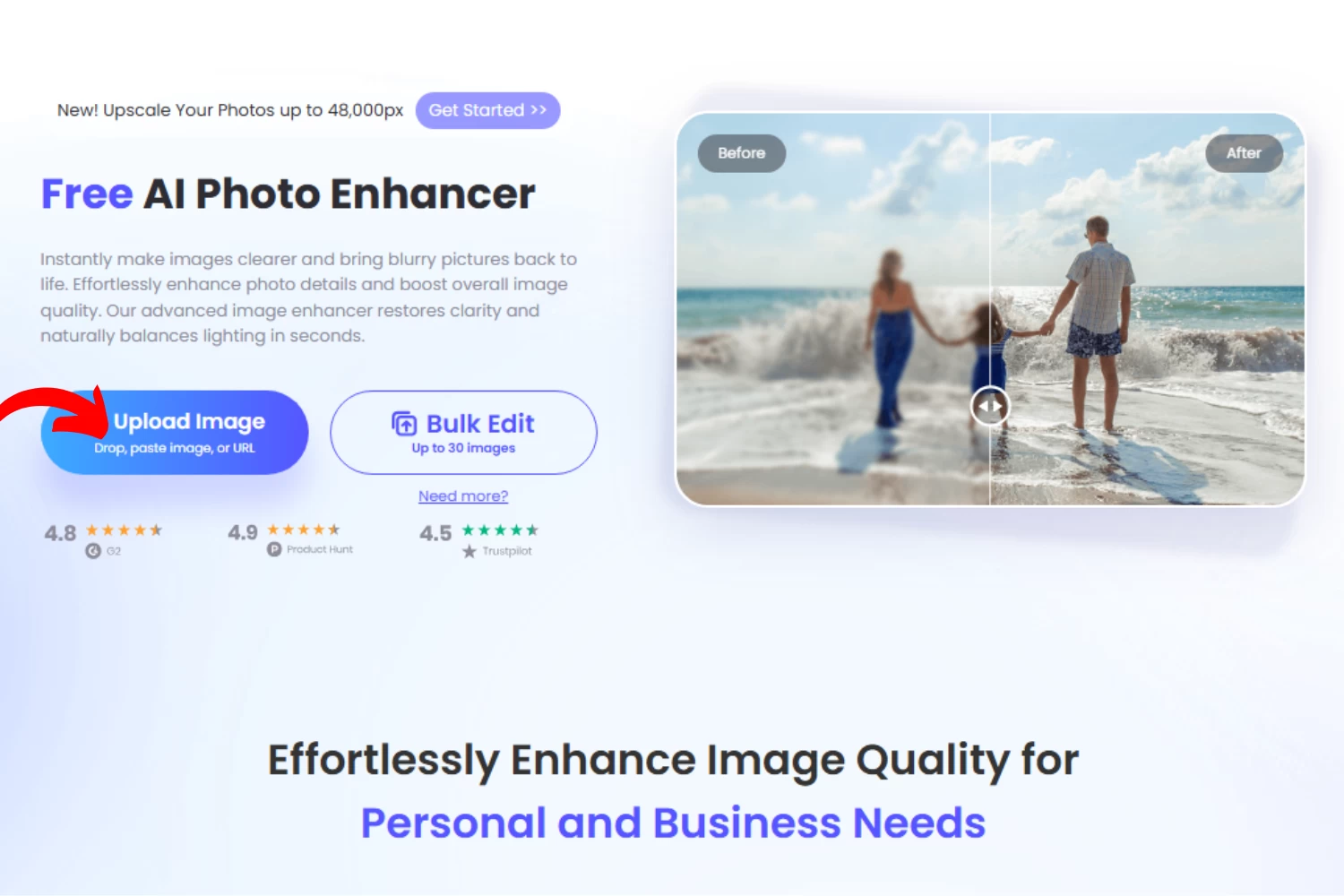
Step 3. Enhance the Image with AI
Once the image is uploaded, PicWish automatically analyzes it and applies AI enhancement to improve clarity, sharpen details, and increase resolution. You can also choose the enhancement model that best suits your image type for optimal results.
Step 4. Compare the Before and After Results
Review the enhanced image by using the slider to see and compare the before-and-after results. This allows you to easily compare the improvements and confirm that the photo looks sharper, clearer, and more refined.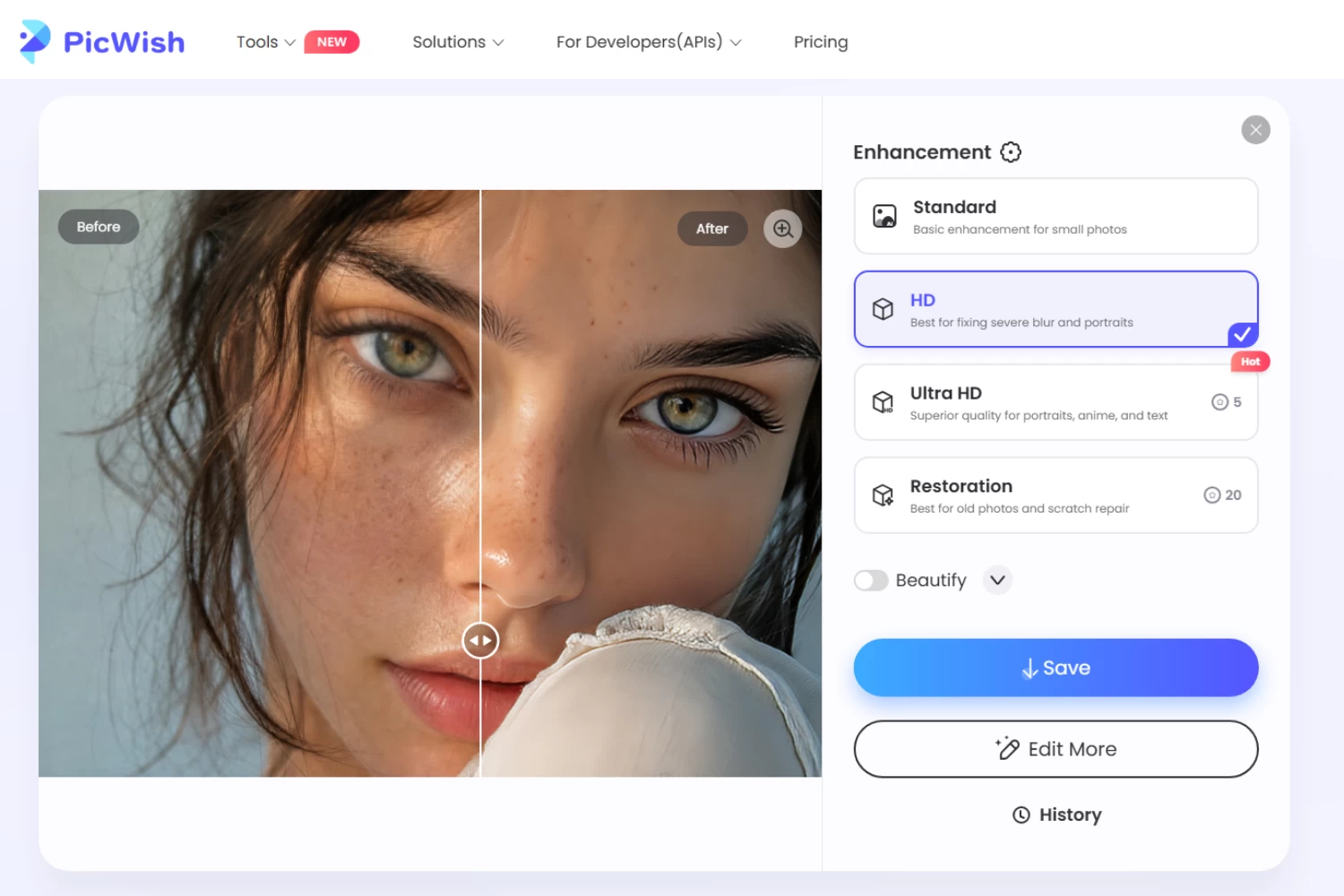
Step 5. Download the Enhanced Image
When you’re satisfied with the result, click Download to save the enhanced image in high quality. Your AI-generated image is now ready for social media, presentations, digital portfolios, marketing materials, or printing.
Tips for Getting Better Results
Although AI photo enhancers can significantly improve image quality, following a few best practices can help you achieve even better results. Here are some tips to keep in mind before you improve AI image quality:
- Start with the highest-resolution image available. More detail gives the AI better results.
- Avoid repeatedly compressing the file. Compression lowers quality and removes fine detail.
- Use PNG whenever possible. PNG keeps more image data than compressed formats.
- Enhance the image before making additional edits. This helps preserve sharpness for later changes.
- Don’t over-upscale extremely small images. Very low-resolution images can still look unrealistic when enlarged too much.
By following these recommendations, you can maximize the effectiveness of AI enhancement and create clearer, sharper, and more professional-looking AI-generated images.
When Should You Enhance AI-Generated Images?
Enhancing AI-generated images can make a noticeable difference in certain personal and professional projects. By improving clarity, sharpness, and resolution, you can create visuals that look more polished and are better suited for different purposes.
Here are some common situations where enhancing AI-generated images is beneficial:
- Social media posts: Create eye-catching visuals that stand out on platforms like Instagram, Facebook, and X.
- AI headshots: Improve the quality of AI-generated photo for online portfolios, personal projects, or creative showcases.
- Marketing materials: Produce sharper images for advertisements, promotional graphics, flyers, and email campaigns.
- Blog graphics: Make featured images, infographics, and article illustrations appear more professional and engaging.
- Presentations: Enhance visuals for business meetings, school reports, or client pitches to improve overall presentation quality.
- Print projects: Increase image resolution before printing posters, brochures, invitations, or other physical materials.
- Wallpapers: Create crisp desktop or mobile wallpapers with improved detail and visual clarity.
No matter how you plan to use your AI-generated images, improving their quality beforehand helps ensure they look their best across both digital and printed formats.
FAQs
📍 What image formats can I upload?
Most AI photo enhancers support common formats like JPG, PNG, and sometimes WEBP. Check the tool’s supported file types before uploading. As for PicWish, it supports JPG, JPEG, PNG, HEIC, and WebP.
📍 Do I need editing experience to use an AI photo enhancer?
No. AI photo enhancers are beginner-friendly, so you can usually improve AI image quality in just a few clicks. They’re a fast option for users who want easy results.
📍 Is it safe to upload my AI-generated images online?
That depends on the platform. PicWish Photo Enhancer offers a trusted workflow with clear data protection policies. Even so, avoid uploading sensitive images to any online tool unless you have reviewed its privacy terms.
📍 Can I use enhanced AI images for social media, portfolios, or commercial projects?
Yes, as long as you have the rights to use the original image and the platform’s terms allow it. Enhanced AI images are often used for social media, portfolios, marketing, and other projects.
Conclusion
AI-generated images don’t always come out perfectly, but AI enhancement makes it easy to improve their clarity, sharpness, and overall quality. If you’re looking for a simple way to enhance AI-generated images, PicWish Photo Enhancer offers a fast and beginner-friendly solution. Try it today to create sharper, more polished visuals in just a few clicks.




Leave a Comment