
PART 1 | Why Edit Text in an Image While Keeping the Same Font?
When creating graphics, posters, or banners, it can’t be helped that typos happen or that you sometimes need to update text information, such as the price or date. Editing it is easy if you still have the design file, but if you don’t, it can be challenging to do and may even leave noticeable flaws, like mismatched fonts or uneven spacing. If this happens, the graphics, posters, or banners that you are working on might lose their original appeal. Fortunately, there are now online photo editors that can help you edit text in image with same font through the use of AI.
Let’s take a closer look at these tools and find out how they can help you change the text in an image while keeping the original font.
PART 2 | Top 5 Online Tools To Edit Text In Image With Same Font Free
1. PicWish
First on the list is PicWish’s Edit Text in Image tool, which can recognize and replace the existing text on images while still keeping the same font style, font size, and even the placement of the original text. With this tool, you don’t have to trouble yourself by manually removing every letter of the text or recreate the entire graphic design. Instead, you can just follow the easy steps below to edit text in image with same font and save time and effort.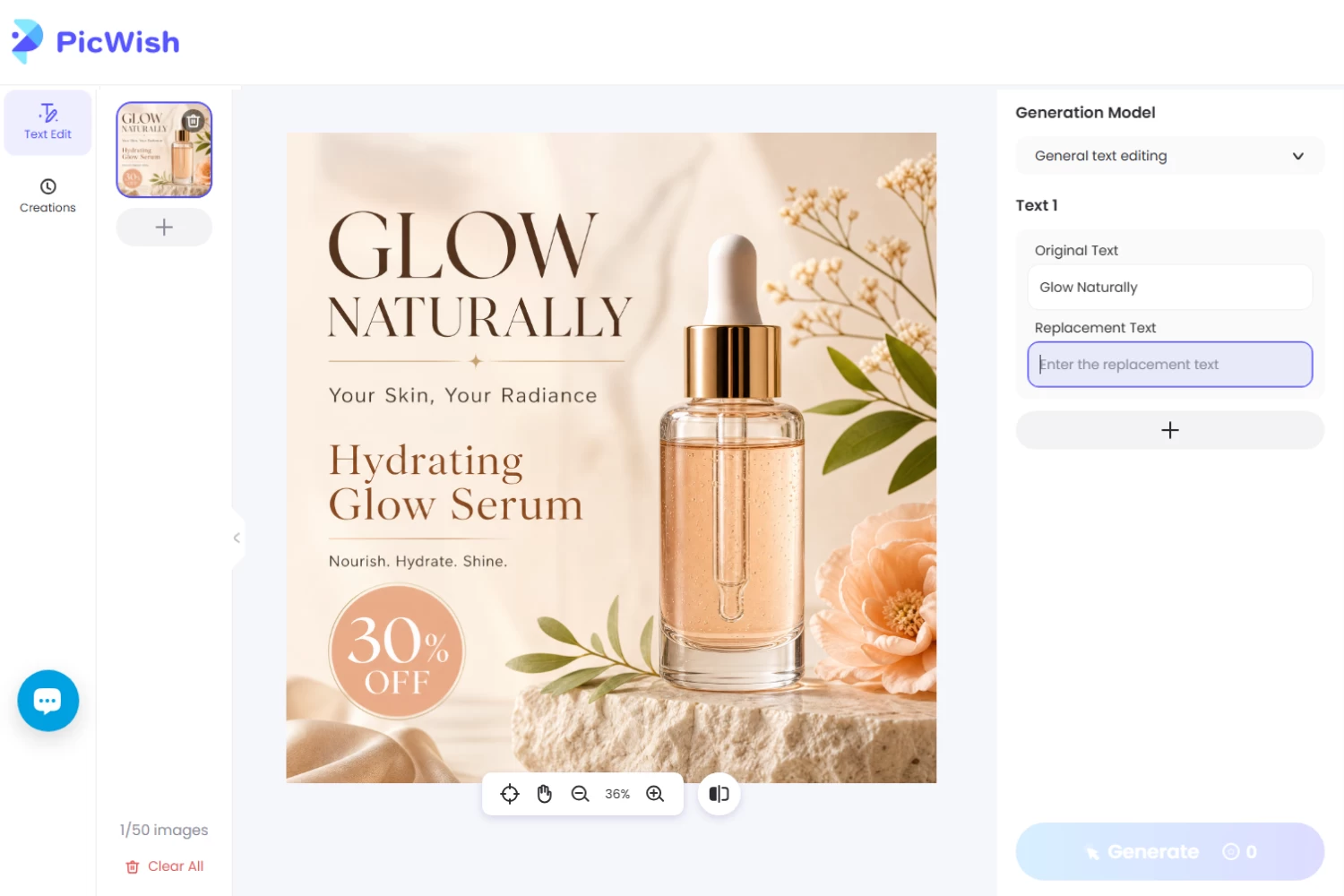
How to change text in image with same font using PicWish:
Step 1. Upload your image: Go to Edit Text in Image page and upload your photo. You can also drag and drop it onto the upload panel, paste the image or paste its URL.
Step 2. Add text details: Enter the original text and replacement text. Be mindful of the capitalization of your replacement text, as it will appear exactly as entered in the image result.
Step 3. Start the process: Click the Generate button, and wait for the process to finish.
Step 4. Save your image: Once satisfied with the image result, click Save and choose an image format, then select HD Quality.
Highlights:
- Batch processing: Users can upload and manage up to 50 images in a single workspace session.
- Generation Model Selector: Allows users to choose the AI processing mode (Fast text edit, General text editing, and Advanced text editing)
- Multi-Text Support (+ Button): Lets users add additional text entries within the same image so multiple text segments can be edited in one generation process.
- Creations History: Provides quick access to Creations on the left navigation rail to view past outputs.
- Watermark-Free Downloads: Users can save their edited images without a watermark, making it easier to edit text in image with same font online without watermark.
2. PhotoText
Next on the list is PhotoText. From the name itself, this tool is specifically designed for modifying text images. Among the tools in this list, PhotoText offers the most customization tools and effects to help you better edit text in image with same font online.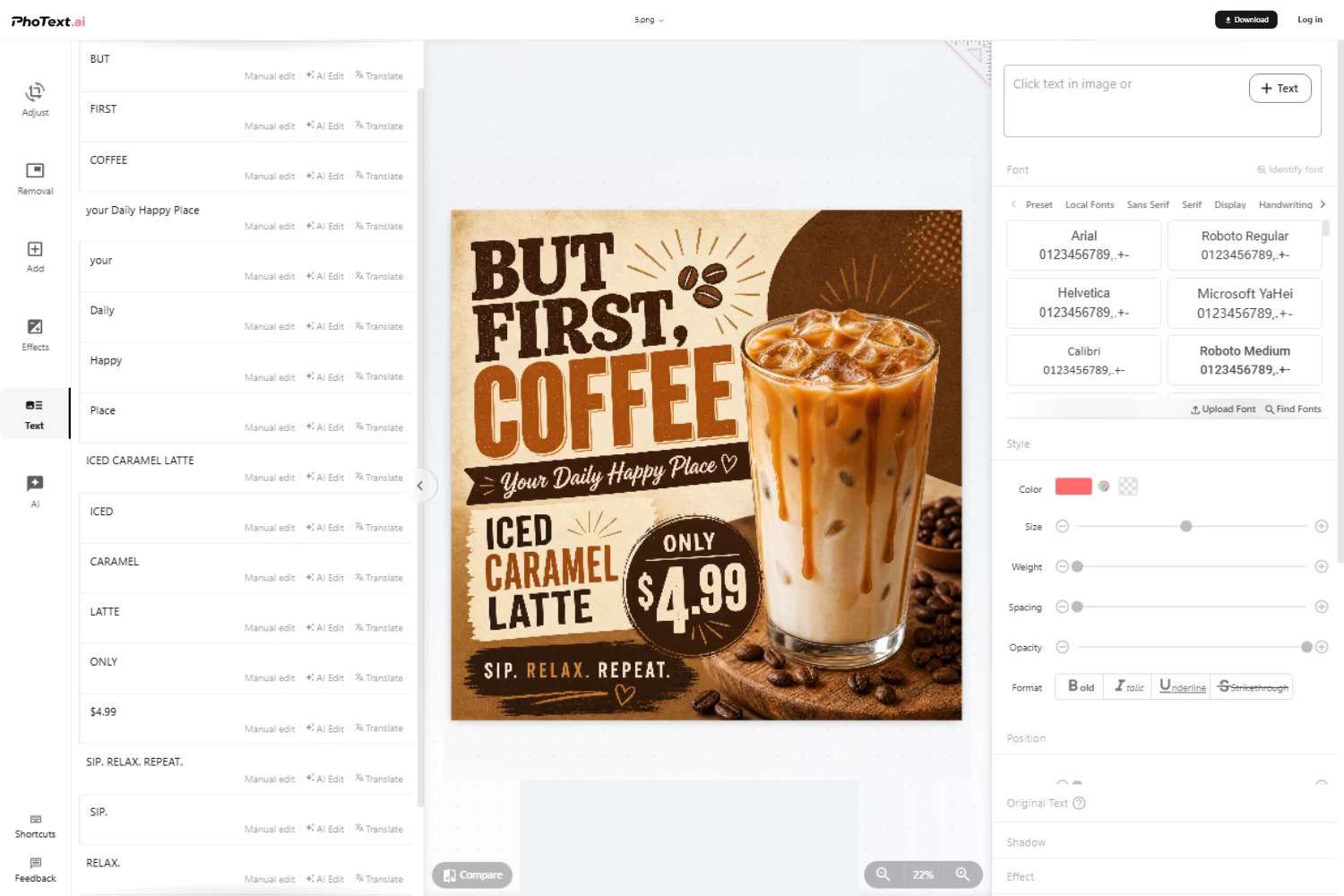
Highlights:
- AI Text Recognition: Detects text in uploaded image and makes individual text elements selectable. The left panel automatically detects and lists every individual text block and phrase from the image, allowing you to edit specific lines or individual words separately.
- Three Editing Options: Each detected text card gives you quick action buttons to Manual edit, AI Edit, or Translate directly in place.
- AI Font Identification (Identify font): Supports font detection that can identify the font style used in the original image. After detection, it will show a list of font styles that closely match the original.
- Categorized Font Library: Allows users to browse fonts under Preset, Local Fonts, Sans Serif, Serif, Display, and Handwriting, or use Upload Font and Find Font to match custom branding.
- Style & Formatting Sliders: Fine-tune Color, Size, Weight, Spacing, and Opacity, alongside standard text formatting.
- Layer and Effects Settings: Offers expandable sections at the bottom-right for Position, Original Text reference, Shadow, and Effect.
3. PixText
Now, let’s look into PixText, another online tool to edit text in image with same font, which focuses on text editing within images.
Highlights:
- Automatic Text Detection: Identifies text regions in uploaded screenshots, posters, and product photos.
- Dual Editing Modes: Its Standard Mode keeps detected text as editable layers so you can manually adjust typography, positioning, and styling. While its AI Match Mode uses generative AI to redraw replaced text in the image’s exact original lettering style, texture, or custom logo/display font.
- Brush Eraser: Allows users to paint directly over any text, icon, or unwanted graphic element to remove it and rebuild the background. It shows real-time processing speed at the bottom (“Erased in 2.3s”).
- Add Text: Users can insert brand-new text layers anywhere onto the canvas.
- Text Styling: Supports adjustments to font, size, weight, color, rotation, outline, and shadow.
4. Imagera AI
Unlike the previous specialized tool, Imagera AI offers a wide variety of content creation tools for both photos and videos. It includes a text editor that guarantees to edit text in image with same font online.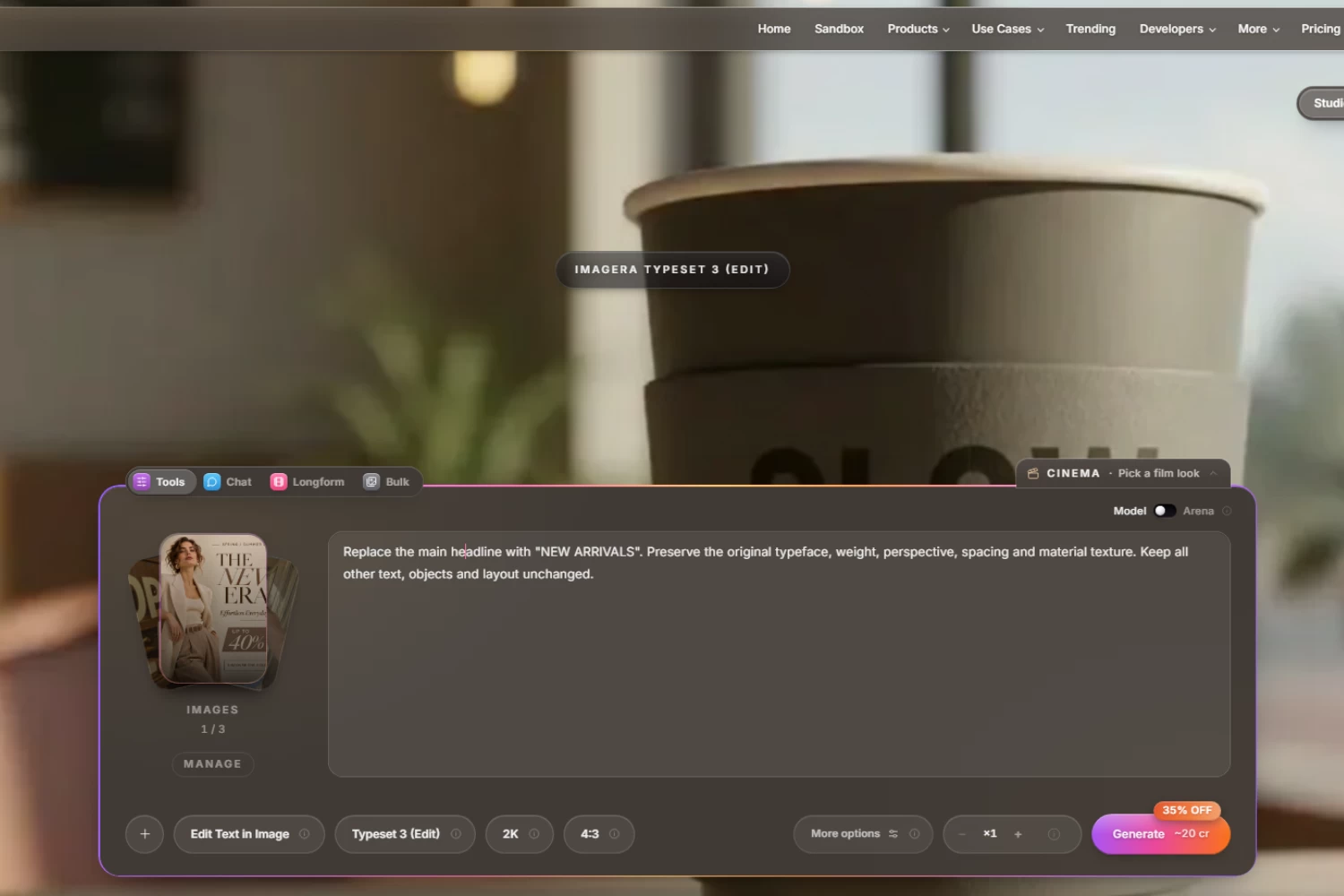
Highlights:
- Prompt-Based Editing: Lets you describe the text changes you want.
- Tools: Specialized utilities for tasks like text editing, image upscaling, background removal, and style transfers.
- Chat: A conversational workspace for brainstorming prompts and switching between AI models.
- Longform: A workflow for creating multi-scene videos and stories while maintaining visual consistency.
- Bulk: A batch-processing mode for editing, upscaling, or generating multiple images at once.
5. insMind
Finally, we have insMind, an image and video generator tool that also offers to help users to edit text in image with same font online.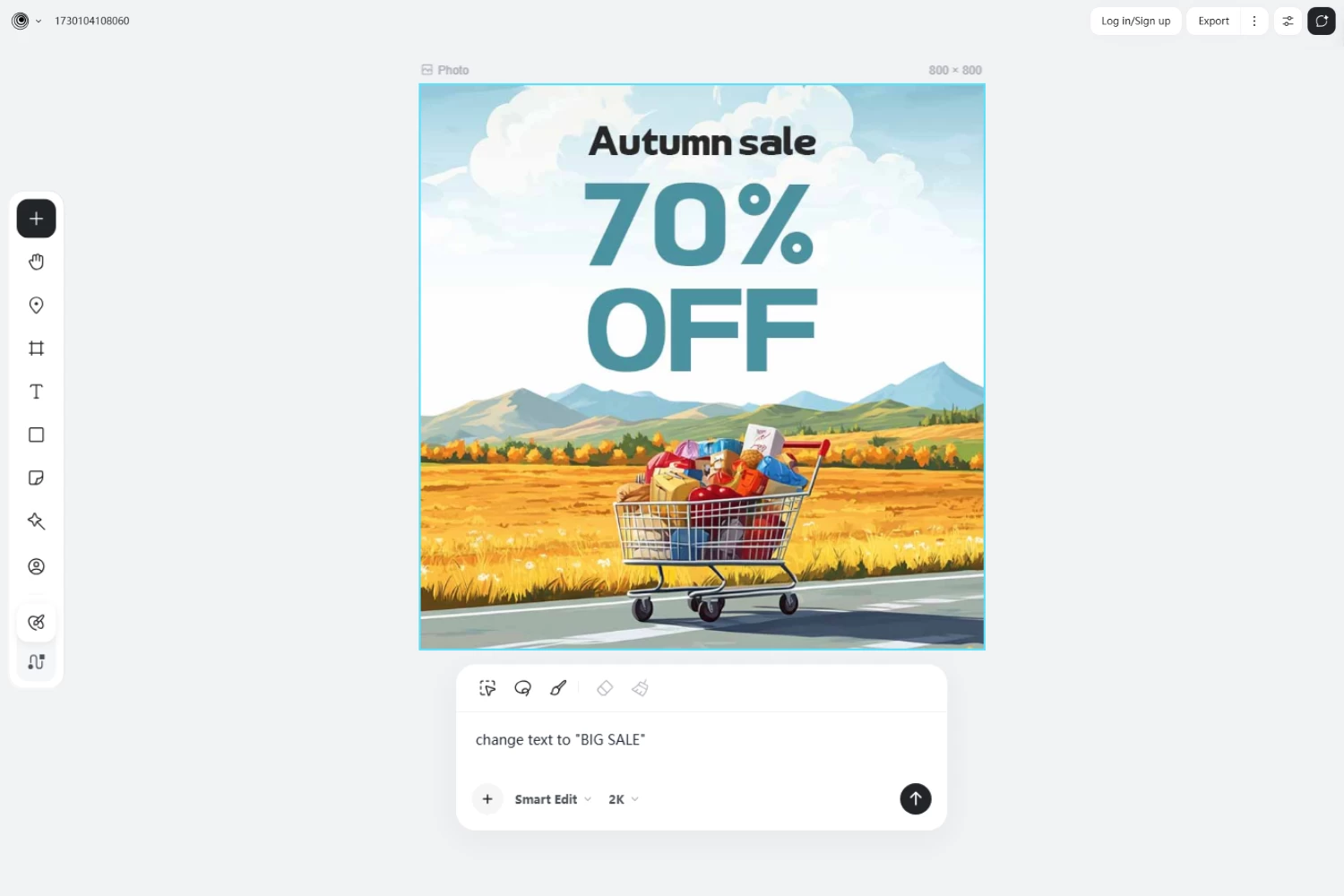
Highlights:
- Prompt-Based Text Editing: Describe the text changes you want, and let AI modify the image.
- Selection & Masking Tools: Provides brush, lasso, and eraser tools to highlight the exact area you want to edit.
- Multi-Tool Creation Suite: Offers quick access to add assets, navigate the canvas, insert text and shapes, upload images, and use AI editing and brush tools.
PART 3 | Comparison of the Top 5 Tools on How to Edit Text in Image With Same Font
| Tool | Text Recognition | Font Matching | Background Repair | Best For |
| PicWish | AI-powered text recognition | Preserves original font style, size, and placement | Automatic AI background reconstruction | Quick text replacement and batch editing |
| PhotoText | Detects and separates individual text blocks | AI font identification and customizable font library | Background repair through text editing | Detailed typography customization |
| PixText | Automatically detects text regions | AI Match Mode recreates original lettering styles | Brush eraser with background reconstruction | Editing text while preserving unique lettering styles |
| Imagera AI | AI-powered text understanding | AI font matching | AI-assisted background preservation | Prompt-based text replacement |
| insMind | Prompt-based text editing | AI-assisted text and design consistency | Prompt-based image editing and brush tools | Selective, prompt-based image editing |
PART 4 | Other Useful PicWish AI Tools to Explore
 Besides helping you edit images with the same font, PicWish offers other AI tools to help you edit and improve your visuals. Here are five tools worth checking out:
- AI Background Remover: Remove backgrounds from product photos, portraits, and other images with AI.
- AI Image Enhancer: Improve image clarity and enhance photo quality.
- AI Object Remover: Erase unwanted objects and distractions from your photos.
- Product Listing Image Generator: Generate multiple product listing images from uploaded product photos, complete with different scenes and backgrounds.
- AI Designer: Create and edit images using text prompts and reference images.
With these tools, you can easily edit, enhance, and customize images for different purposes.
Conclusion
Editing text in images while keeping the original font and design doesn’t have to be a complicated task. With the right edit text in image with same font AI tools, you can replace outdated wording, fix typos, or update promotional graphics without recreating the entire image. Choose the one that best fits your editing needs, and let AI make updating your images easier and faster.


Leave a Comment