
Holiday photos don’t always go as planned—maybe your living room shot feels a little empty, your pet refused to wear a costume, or you just want to photobomb a friend’s selfie with a surprise guest from the North Pole. Instead of spending hours wrestling with complicated editing layers, PicWish—an all-in-one AI photo editor available across Web, iOS, and Android—lets you add Santa to a picture in just a few clicks. Designed for effortless background removal, AI image generation, and smart photo retouching, PicWish gives you both an instant AI generator and a precision manual editor so you can add Santa to your photo with zero design experience.
Quick Summary: AI vs. Manual Method
| Feature | AI Generation (Fastest) | Manual Cutout Overlay (Most Control) |
| Best For | Adding a realistic Santa without hunting for stock images | Using a specific Santa photo you already saved |
| Time Required | ~10 seconds | ~1 minute |
| PC Tool | PicWish AI Photo Maker | PicWish Custom Sticker Maker |
| Mobile Feature | Chat Edit | Blank Canvas + Add Photo |
How to Add Santa to Photo on PC (Web)
On desktop, PicWish Web gives you a spacious browser-based studio with zero software installation required. It is ideal when you are editing high-resolution camera shots or want finer control over your output—letting you pick specific AI models and aspect ratios in AI Photo Maker, or cleanly layer custom cutouts on a larger screen. Here is how to add Santa to a photo online on your computer.
Method 1: Generate Santa Automatically with PicWish AI
If you only have a photo of your living room, fireplace, or any other images and want AI to handle the rest, this is the quickest way to add Santa to photos free of manual editing.
- Open the PicWish AI Photo Maker page on your browser and upload your base image.
- In the prompt box, type a clear instruction such as:
add santa to this photo(you can also copy one of the detailed prompts further down in this guide).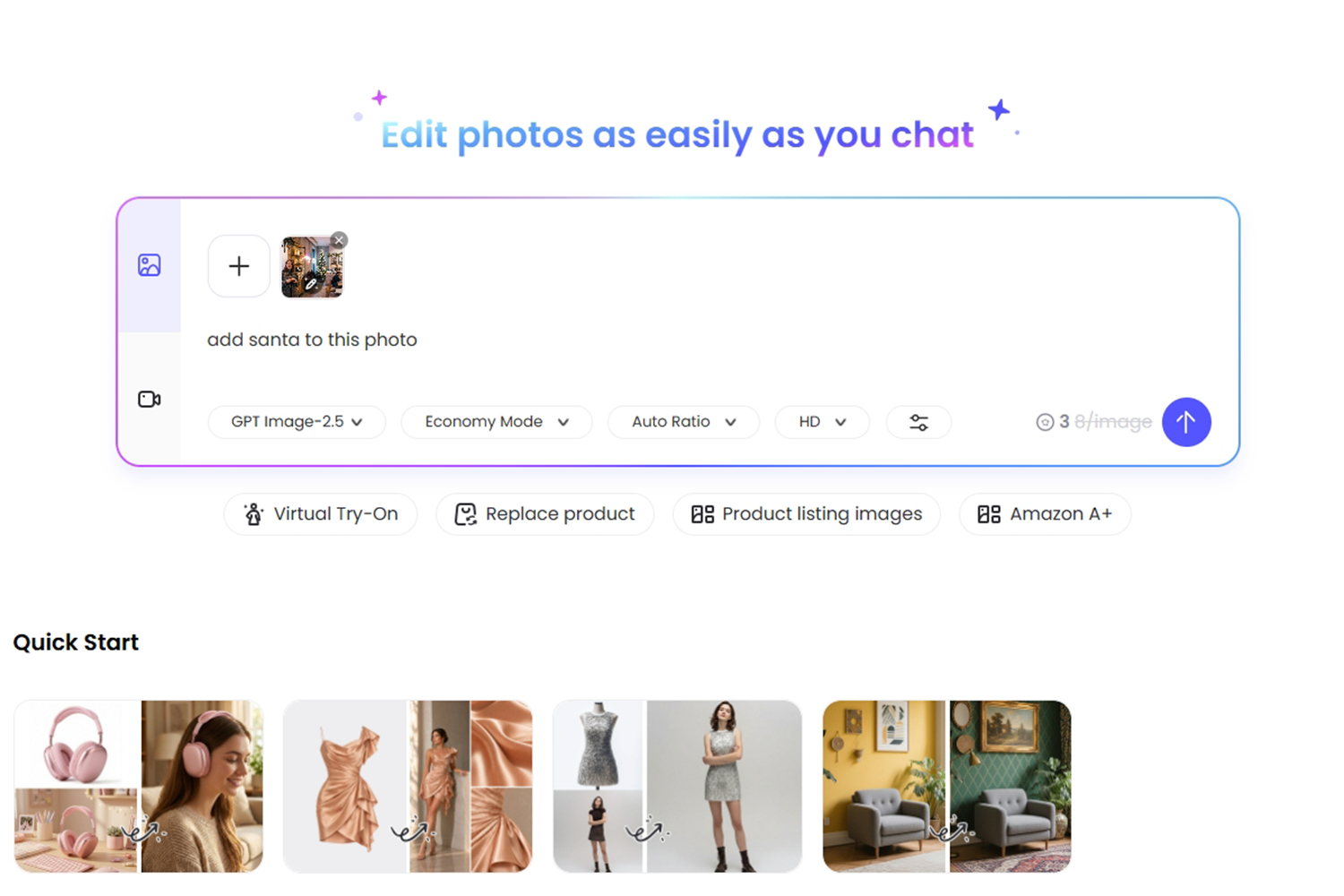
- Select your preferred AI Model and choose the output image size and aspect ratio you need.
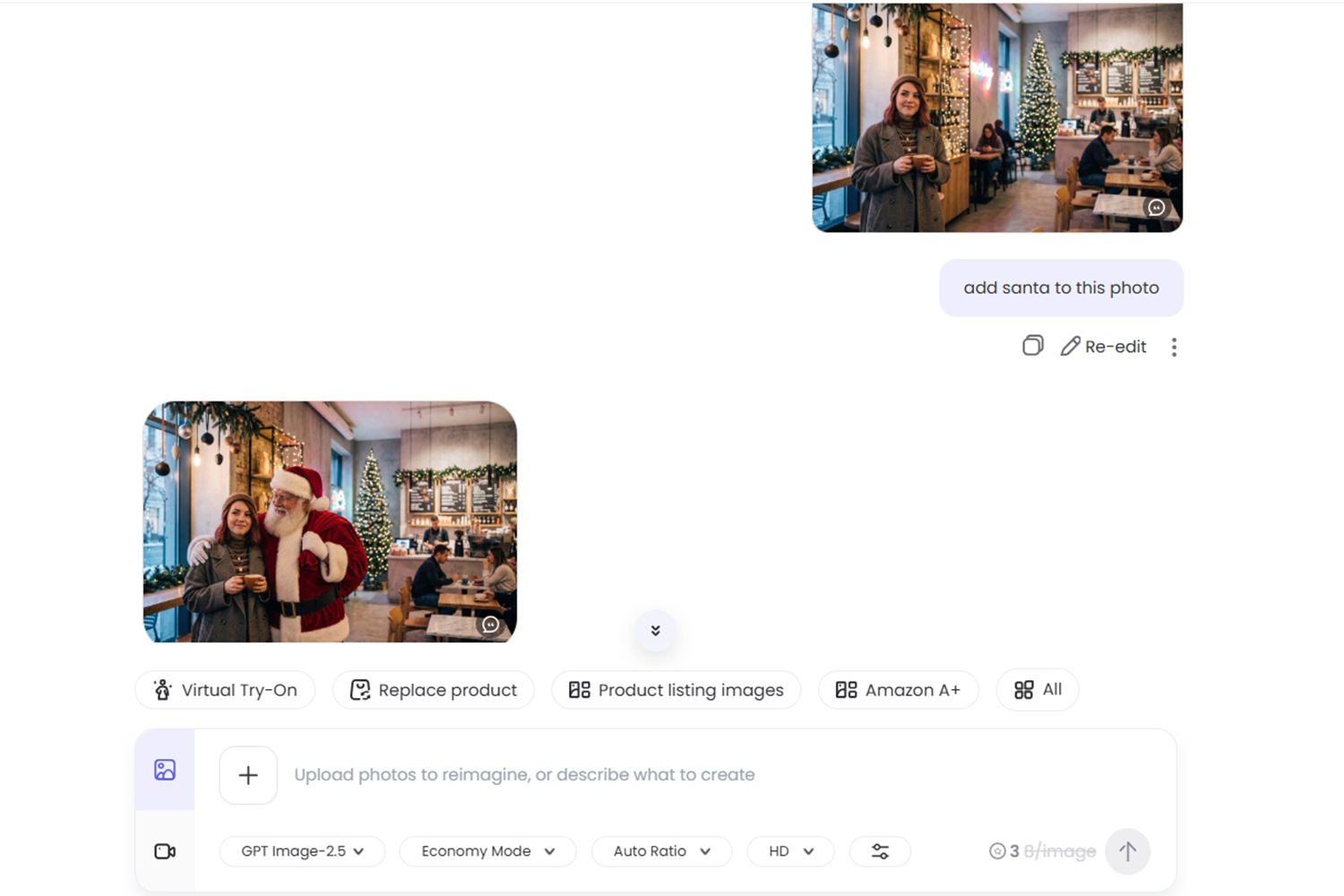
- Click generate and wait a few seconds. PicWish AI will automatically place a realistic Santa Claus into your scene, matching the ambient lighting and shadows.
![add Santa to photo online]()
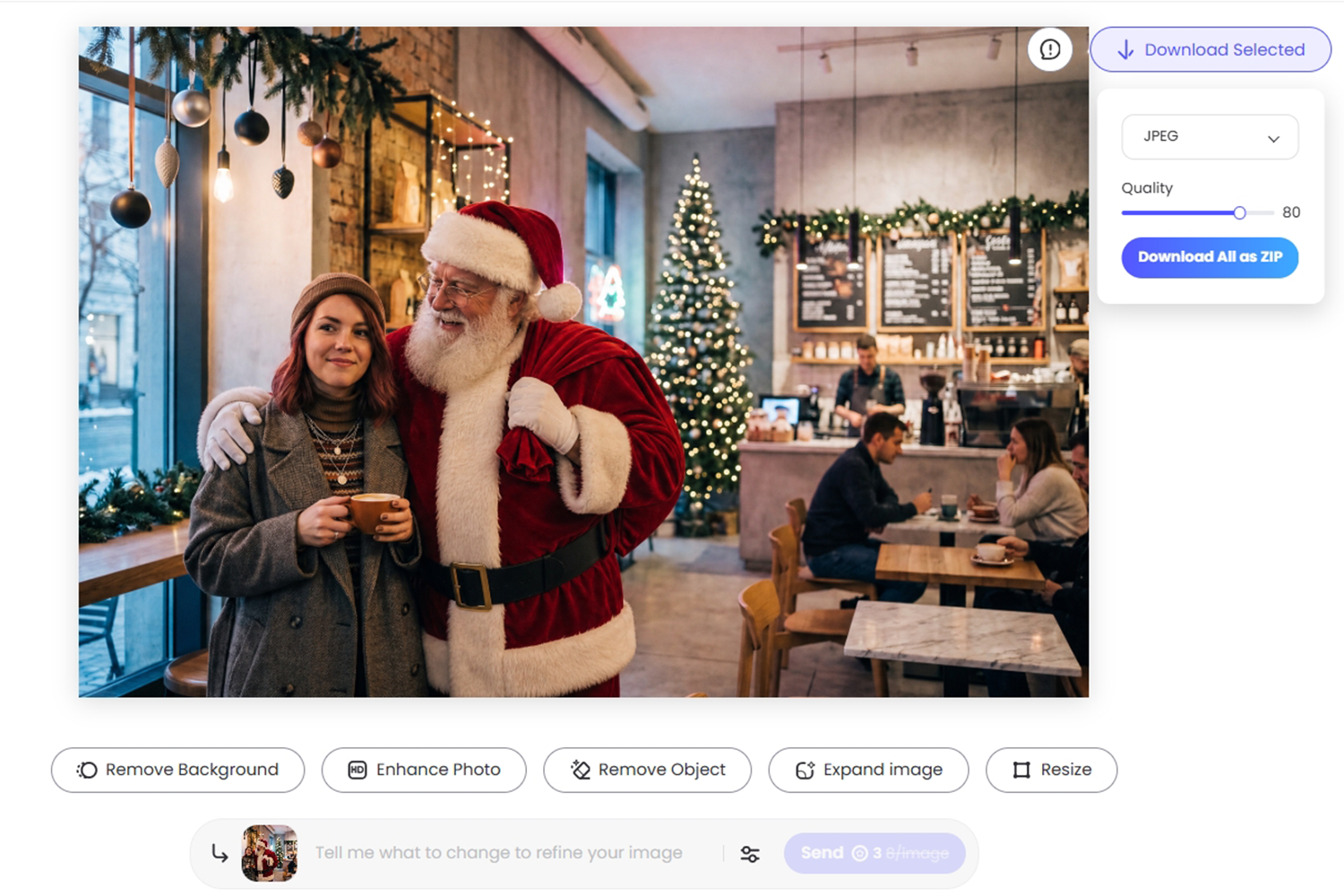
- Click on the image to preview the result, and move your mouse to the Download Selected button to save your image.
![download photo with Santa]()
Method 2: Manually Add Your Own Santa Picture
Already have a specific picture of Santa waving, holding gifts, or posing that you want to use? You can turn him into a clean cutout and place him anywhere in your shot.
- Prepare the Santa image you want to use and save it to your computer.
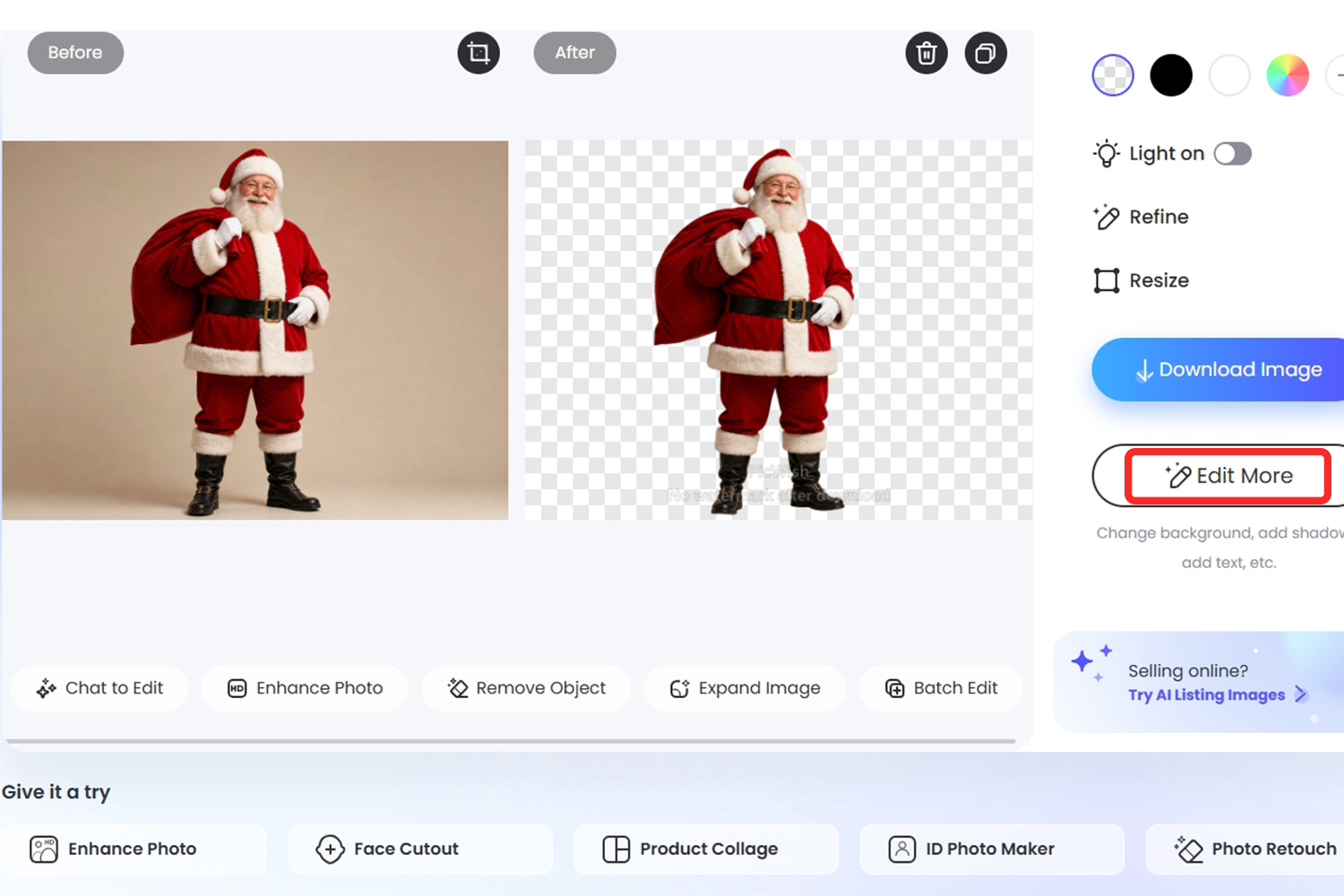
- Visit the PicWish Background Remover tool and upload your Santa picture. The tool will automatically remove the background in seconds. Click Edit more to open the full workspace.
![remove Santa photo background]()
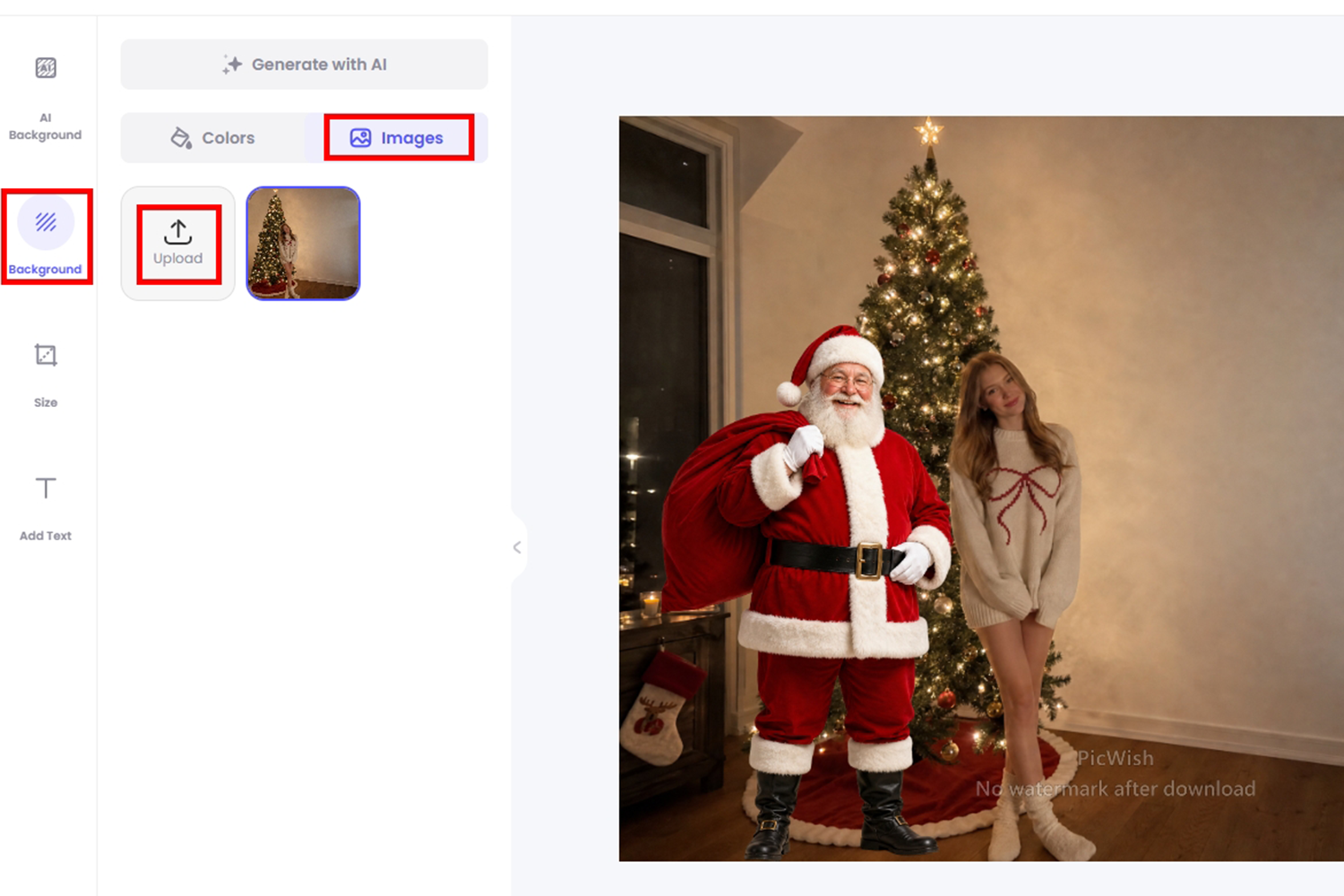
- Then switch to the Background tab and find Image option. Upload a local photo from your computer (the living room, Christmas tree, or family picture where you want Santa to appear) to set it as your new background.
![manually add Santa to your photo online]()
- Drag and resize the Santa cutout so his proportions match the furniture or people in your photo.
- Once done, click the Save button on the upper right to export your finished picture.
How to Add Santa on Photo on Mobile (iOS & Android)
When you are editing straight from your camera roll to post on Instagram, TikTok, or family group chats, the PicWish mobile app streamlines everything for touchscreens. Instead of tweaking complex settings, you can simply tell the built-in Chat Edit assistant what to add in plain English, or pinch-and-drag your own Santa sticker inside Blank Canvas. Follow these steps to add Santa on photo from your phone:
Before you start, download and install the latest version of PicWish from Google Play or the App Store.
Method 1: Use Chat Edit to Add Santa with a Prompt
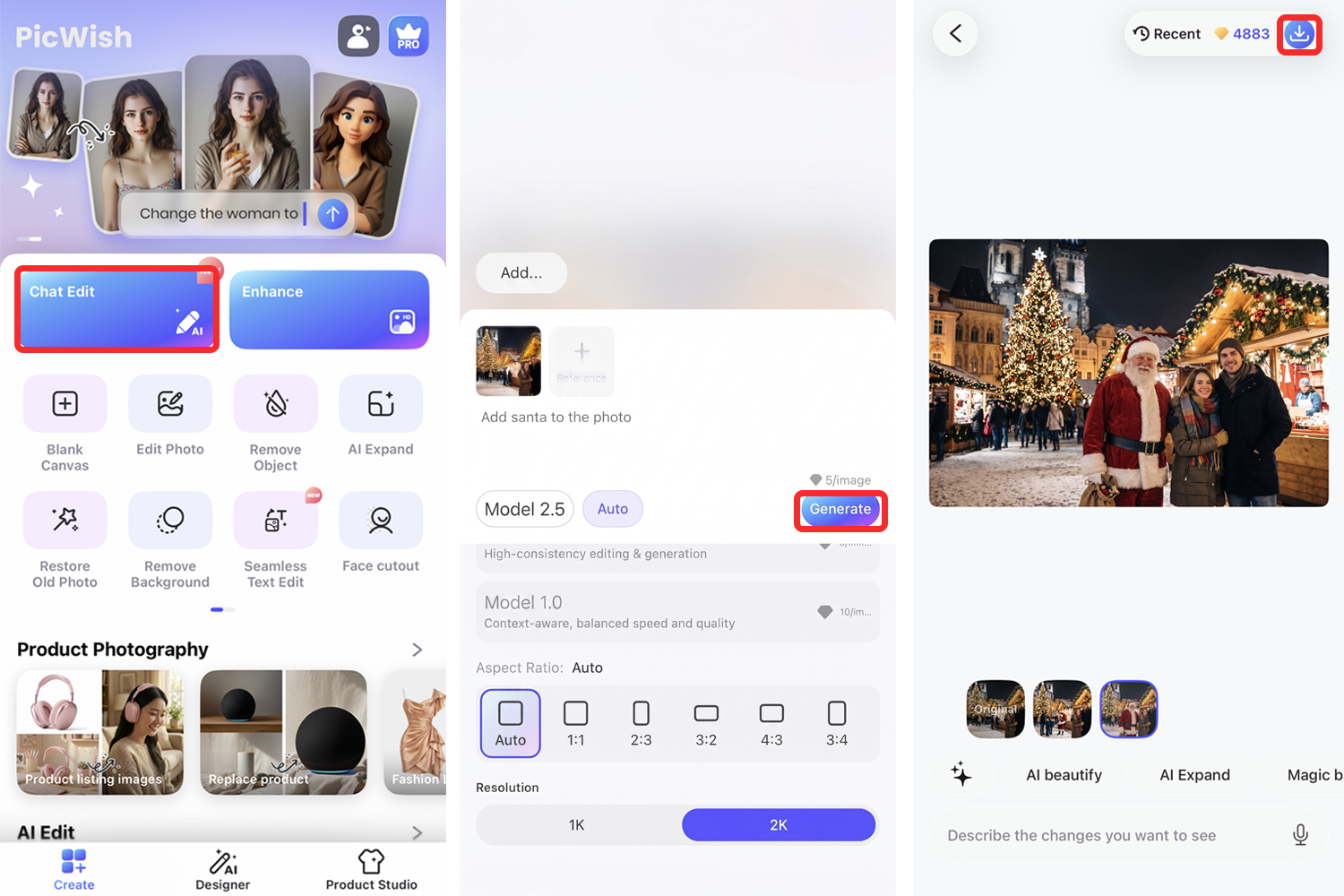
- Open the PicWish app and tap Chat Edit right on the home screen.
- Select the photo you want to edit from your phone’s gallery.
- Type the prompt
add santa to the photointo the chat box, select the model, ratio, and resolution, and hit the Generate to send it.![add Santa to photo on Android and iOS]()
- Wait just a few seconds for the AI to process your request. Once Santa appears seamlessly in your photo, tap the download icon on the upper right to save the image to your device.
Method 2: Manually Layer a Santa Cutout Using Blank Canvas
If you already saved a Santa image on your phone and want full control over his exact angle and placement, use the layered canvas workflow.
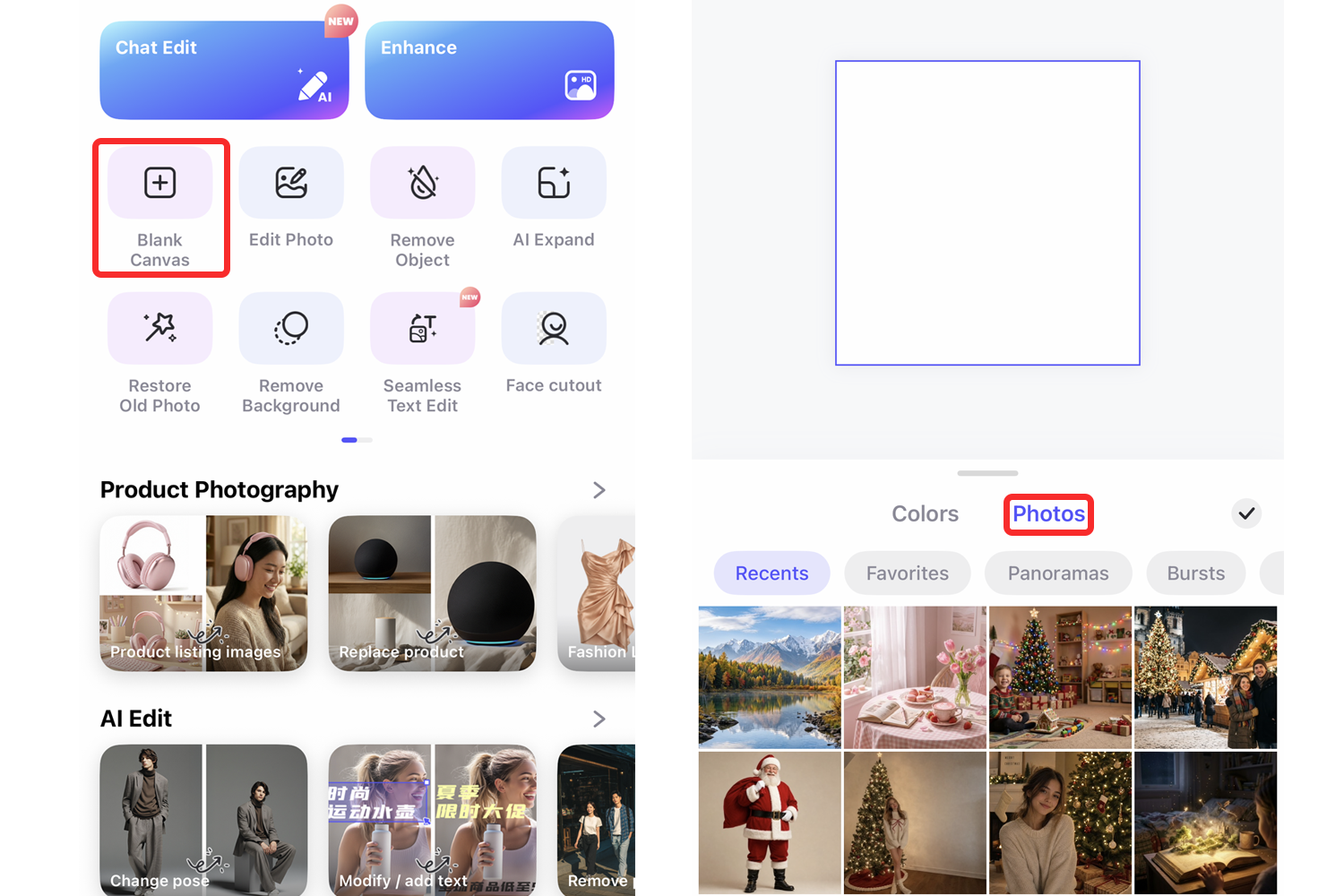
- Open the PicWish app and tap Blank Canvas on the home screen.
- Tap anywhere on the blank canvas, switch to Photos, select your own photo, and tap the Check icon to confirm.
![upload your photo for adding Santa]()
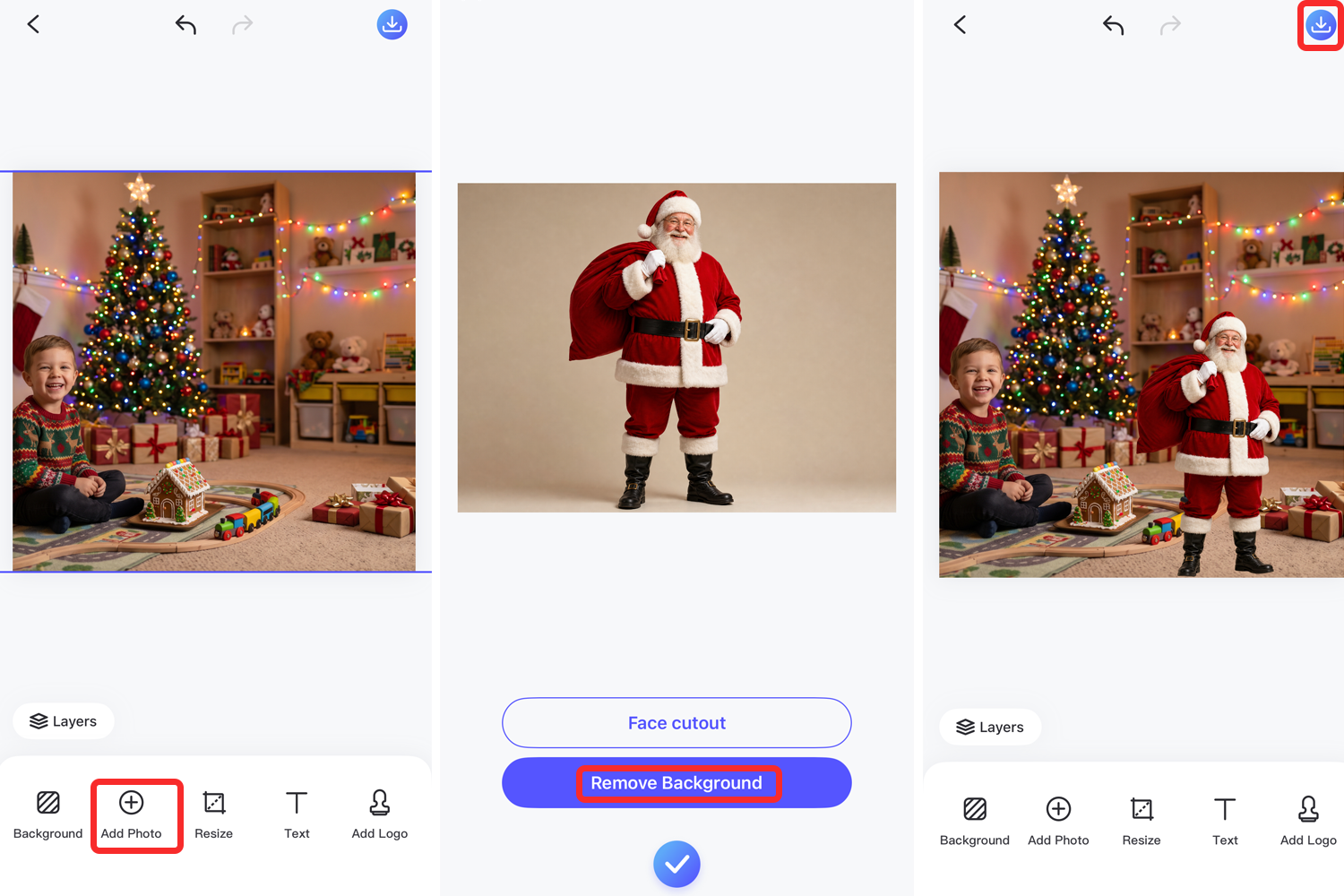
- From the bottom toolbar, select Add Photo and import the Santa picture you prepared earlier.
- When prompted during import, choose Remove Background if your Santa image has an existing backdrop. This turns him into a clean, transparent overlay.
![add Santa to picture with PicWish Mobile]()
- Use two fingers to pinch, resize, and drag Santa into the ideal spot in your photo.
- Once everything looks natural, tap the Save button in the top-right corner to save the final image to your phone.
5 Copy-Paste AI Prompts for Realistic Santa Photos
While typing add santa to this photo works great out of the box, adding specific details about action and lighting helps PicWish AI Photo Maker and Chat Edit produce results that look like genuine candid snapshots. Try pasting one of these prompts:
- Classic Living Room Gift Drop: Add a realistic Santa Claus kneeling next to the Christmas tree placing wrapped gifts, warm dim living room lighting, candid night photo
- Cozy Fireplace Scene: Add Santa Claus standing quietly near the fireplace holding a sack of toys, soft warm glow, natural shadows, realistic photography
- Peeking Through the Window: Add Santa Claus smiling and waving outside the living room window at night, gentle snow falling outside, realistic indoor reflection
- Caught Eating Cookies: Add Santa Claus standing by the kitchen counter holding a cookie and a glass of milk, candid home camera style, low light
- Joining a Family Portrait: Add Santa Claus standing naturally behind the family and smiling warmly at the camera, matching indoor lighting and camera grain
4 Pro Tips to Make Your “Caught Santa” Photo Look 100% Real
Whether you use AI generation or manual layering to add Santa to your photos, a few small photography habits will make the final image completely believable:
- Turn off overhead lights when shooting your base photo. Take your living room picture at night using only the warm glow of the Christmas tree lights or a fireplace. Low-light ambience naturally hides composite edges and makes the scene look like a genuine midnight capture.
- Leave intentional empty space. Frame your shot so there is an open spot beside the tree, near the mantle, or behind the couch where Santa can logically stand without awkwardly overlapping furniture.
- Match perspective and scale. If you are manually resizing a Santa cutout, compare his height against nearby reference points like doorframes, armchairs, or the Christmas tree, and make sure his boots rest cleanly on the floor plane.
- Choose candid poses over stiff staring. A photo of Santa bending over a stocking or glancing back toward the hallway feels far more authentic than a front-facing studio pose.
Frequently Asked Questions (FAQ)
Are my family and kids’ photos kept private when I upload them?
Yes. PicWish respects user privacy—your uploaded photos are processed securely just to generate or edit your image and are not shared publicly or used without your permission.
What if my night photo looks grainy or blurry after editing?
Taking photos in dim Christmas tree lighting often introduces digital noise. Once you finish adding Santa, you can run your picture through the PicWish AI Photo Enhancer to sharpen blurry details and clean up low-light grain while keeping the cozy atmosphere intact.
Can I add Santa to a photo with my pets or a large family group?
Absolutely. Snap a photo of your family or pets with a bit of open space behind or beside them, then use Chat Edit on mobile or AI Photo Maker on PC with a prompt like “add Santa Claus standing behind the family and smiling.” The AI will detect the existing subjects and position Santa naturally in the background.
How do I add a Santa hat to photo instead of the whole Santa Claus?
If you only want to put a festive hat on a selfie, profile picture, or pet photo rather than adding a full person, open PicWish AI Photo Maker or Chat Edit and type add a red Santa hat on the person (or on the dog). You can also use the manual sticker workflow to place a Santa hat cutout directly on top of any subject.
Is the final image high-resolution enough to print on Christmas cards?
Yes. PicWish allows you to export crisp, high-resolution images that look great whether you are posting them on social media, sending them in family group chats, or printing physical holiday cards.





Leave a Comment